
Accessibility Toolkit: Fix empty header tags
Table of Contents
Introduction
The Fix empty header tags wizard provides you with “header tag” errors for the course, or courses and removes the empty headers tag to help fix them quickly.
Both sighted and screen reader users depend on headings to organise and navigate the content on the page. Headings should not be empty and should represent an accurate outline of their relevant content.
Impact of having empty headings
Headings with no text can hinder users of screenreaders.
Where to find the Fix empty header tags wizard
The Fix empty header tags wizard can be accessed via:
- From Site administration: Site administration > Plugins > Admin tools > Accessibility+ > Go to wizards > Fix empty header tags.
- From a course: Course actions menu > Brickfield Accessibility+ Toolkit > Go to wizards > Fix empty header tags.
- From the course block: Accessibility+ Review block > View Accessibility+ Report (Chart icon) > Go to wizards > Fix empty header tags.
- From the Check list report: The “Fix” link that’s available for the “A header needs to contain text to be perceivable” check.
How to use the Fix empty header tags wizard
The Fix empty header tags wizard displays a page which includes a table where each row is one of the headings found that has no text.
The Fix empty header tags wizard provides the ability to:
- Submit header tag updates in bulk.
- Make an exception by hiding an individual error.
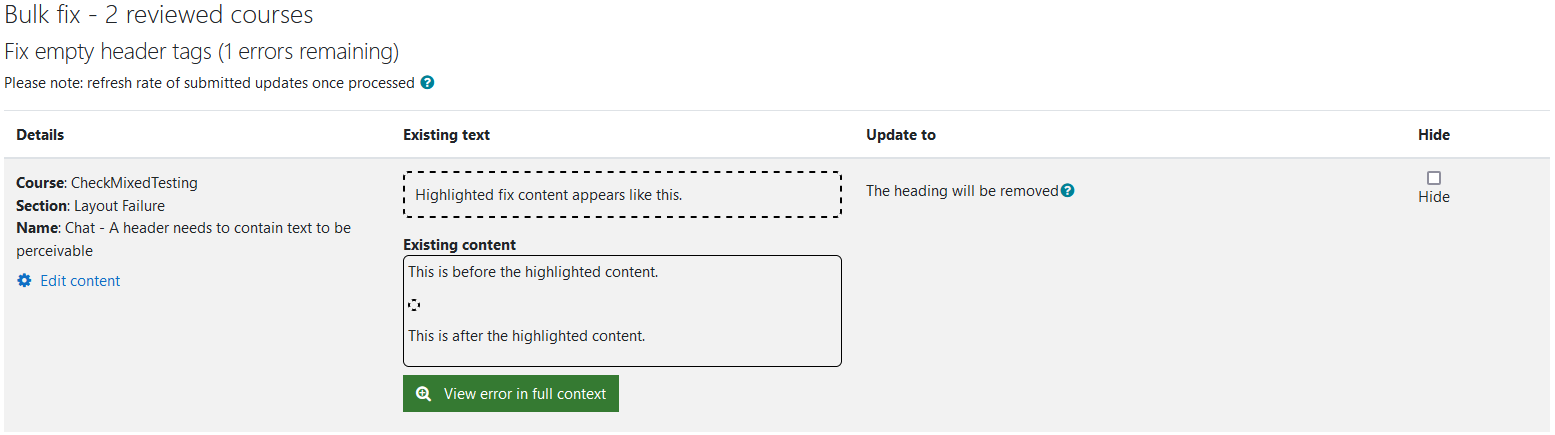
The heading area of the wizard will show how many errors are found, and whether the errors listed are for one course or many courses.
- If the results are for one course, the course name is displayed.
- If the results are for more than one course, the number of courses is displayed.
The table displays a row for each error that contains four parts:
- Details
- Course Name.
- Course Section.
- Activity name.
- The link to Edit the content.
- Existing context
- Existing content.
- The button to view the error in its full context.
- Update to – The heading will be removed.
- Hide – The checkbox to hide the error when submitted.
Where to find the Fix empty header tags wizard
When updates to the errors are submitted for bulk fixing, it will only process the errors on the current page. All fixed errors are temporarily logged and can be reverted if needed in the Bulk fix log.
To submit updates to the errors for bulk fixing:
- Ensure you are viewing the Fix empty header tags wizard.
- If you want to hide this error, select the “Hide” checkbox.
- Select the “Submit Bulk fixing” button to submit all the updates at once.
All hidden errors are located in the Exception Management page.
Capability requirements
Access to the Brickfield Accessibility+ Toolkit is controlled by capabilities and users must have the correct capabilities in the correct context.
- ‘tool/bfplus:viewsystemtools’ capability – To view site level reports and wizards.
- ‘tool/bfplus:viewcoursetools’ capability – To view individual course reports and wizards.
- ‘accessibilityplustool/fixemptyheaders:view’ capability – To view this Fix empty header tags wizard, users must have this and one of the capabilities mentioned above.
For more information, go to: Capabilities.