
Accessibility Toolkit: Accessibility report settings
Table of Contents
Introduction
The Brickfield Accessibility+ Toolkit reports display the results and errors of those checks in a visual, engaging manner to both administrators, teachers, and users with suitable permissions / capabilities.
Manage tools
The Brickfield Accessibility+ Toolkit can be configured by the site administrator to enable or disable whichever tools (the various reports and fix wizard pages) are available to users and change the display order of the tools.
Individual tools of the Brickfield Accessibility+ Toolkit can be disabled or have there display order changed by the site administrator.
- Go to: Site administration > Plugins > Admin tools > Accessibility+ > Manage tools
The Manage tools page contains a table for both the Find and Fix tools, each with it’s own default display order for the related tools.
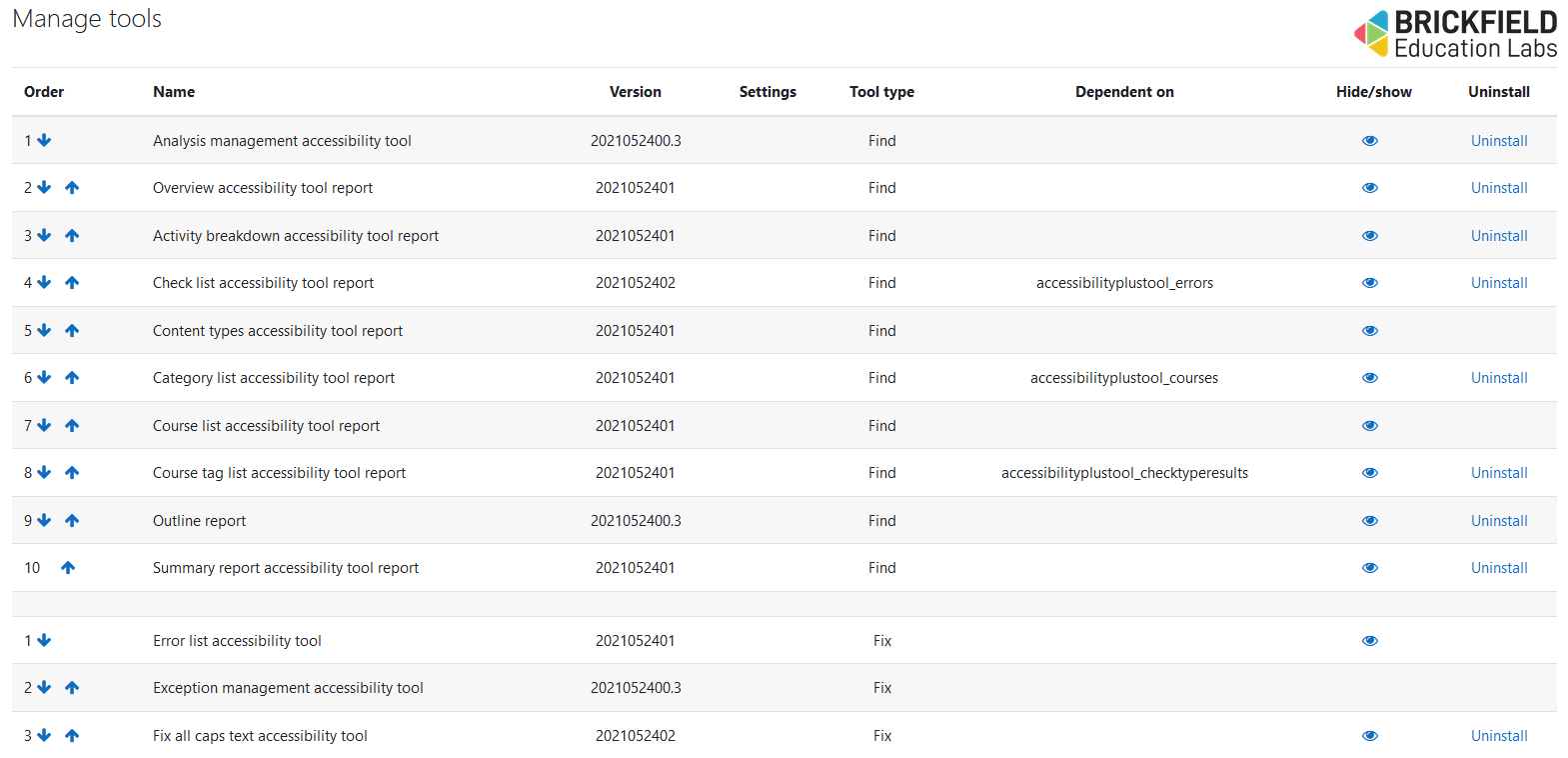
The Manage tools page contains the following relevant details for each tool:
- Order:
- the number the tool places in the display order.
- an up arrow icon to move the tool up in the list.
- a down arrow icon to move the tool down in the list.
- Name: the tools name.
- Version: the tools version number.
- Settings: specific tool settings.
- Tool type: will be “find” or “fix”.
- Dependent on: the tools dependencies.
- Hide/show: an eye icon to toggle the display of the tool
- Uninstall: a link to install the individual tool