
Accessibility Toolkit: List of bulk fixes and restore option
Table of Contents
Introduction
This Bulk fix log provides a list of previously existing accessibility errors that have since been fixed through the available wizards. The user is shown the retained records of each HTML change generated by using one of the fix wizards, with an option to restore the original HTML.
Retaining and viewing this information is dependent on some configurations, as follows:
- The Moodle installation length of time for retaining all logs.
- For instance, the default standard log’s configuration is called “logstore_standard | loglifetime”.
- The Brickfield Accessibility+ Toolkit configuration “enablebulkfixlogging” needs to be enabled, which it is by default.
Editor's Note
These “Restore” action requests will potentially re-introduce errors when restoring back to the previous HTML, which will then be re-analysed and most likely be reported as errors again.
Where to find the Bulk fix log
The Bulk fix log can be accessed via:
- From a course: Course actions menu > Brickfield Accessibility+ Toolkit > Go to wizards > Bulk fix log.
- From the course block: Accessibility+ Review block > View Accessibility+ Report (Chart icon) > Go to wizards > Bulk fix log.
How to use the Bulk fix log
The Bulk fix log displays a page which includes a table where each row is one of the errors updated through the fix wizards.
The Bulk fix log provides the ability to restore errors.
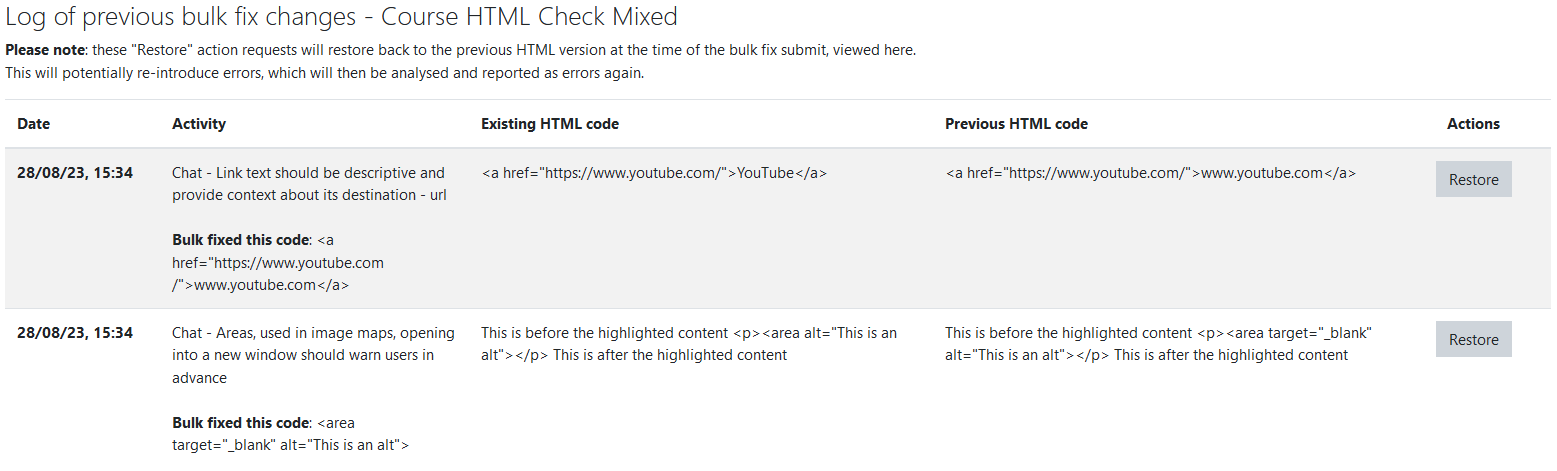
The heading area of the wizard will show how many errors are found, and the course name.
The table displays a row for each error that contains five parts:
- Date – The date the error was fixed.
- Activity
- Activity name.
- The code that was fixed.
- Existing HTML code – The existing code.
- Previous HTML code – The code that was fixed.
- Actions – The button to restore the error.
How to use the Bulk fix log
When updates to errors are submitted for bulk fixing in the fix wizards, the errors are temporarily logged and can be restored in this Bulk fix log.
To restore previously fixed errors:
- Ensure you are viewing the Bulk fix log.
- Select the “Restore” button to restore the error.