Accessibility Toolkit: Restricting the alternate format generation
Table of Contents
Introduction
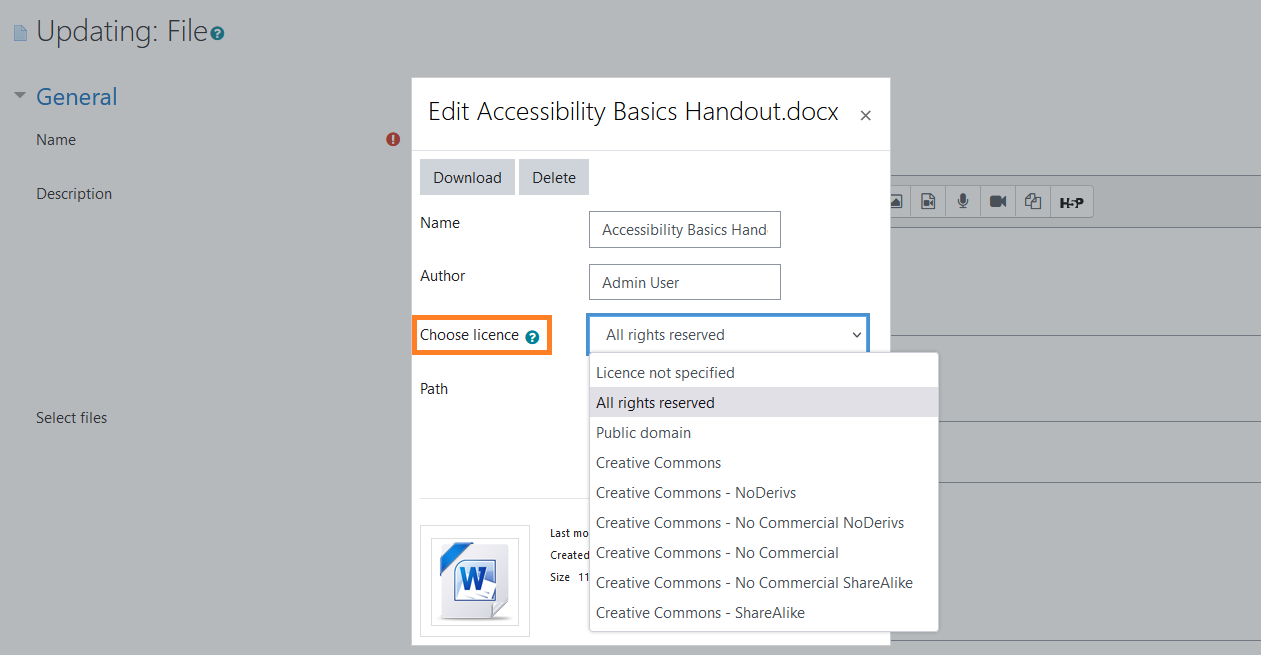
The licences for all files in a course can be edited efficiently and in bulk through the File licences report.
When the Brickfield Alternate Format setting “Restrict licence“ is changed to a value such as “Conversion rights reserved”, or similar, then the following filters are applied.
All files which do NOT have the licence specified in the “Restrict licence“ setting are available for conversion by anyone, via Brickfield Alternate Formats.
All files which DO have the licence specified in the “Restrict licence“ setting are not available for conversion by everyone, via Brickfield Alternate Formats. However, users with the profile setting “Always access alternate formats” enabled, allows them to convert files with restricted licences. How to do this is outlined in the “How to set a user to always access alternate file formats no matter the licence” section below.
Changing a files licence
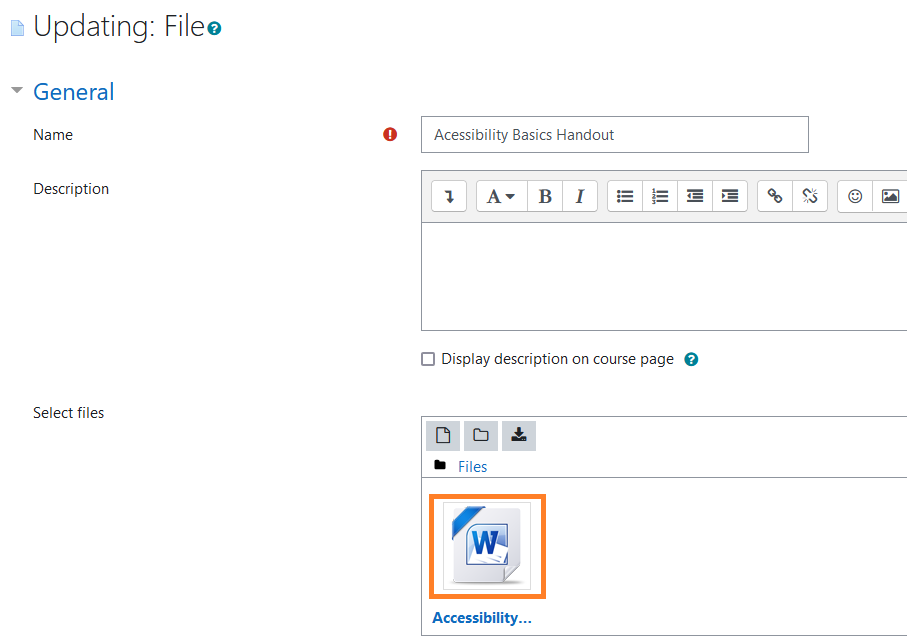
- Navigate to the resource or activity containing the file.
- Click “Turn editing on”.
- For the resource or activity, click: Edit > Edit settings.
- Go to the “Select files” section, and click on the relevant file.
- This brings up a popup with the file details, including the “Choose licence” setting.