Brickfield Enable: Deployment
Table of Contents
Introduction
Brickfield will provide the code for the Toolkit in the form of either a GitHub repository or a full zip of all the plugins needed. These plugins have been listed in the Welcome section previously.
Installation
These Moodle plugins can all be installed together safely. If installing plugins separately, first install the Brickfield Accessibility+ Toolkit (tool_bfplus module) as it is required for some of the other plugins, due to dependencies. The enterprise plugins will only be released to clients who are on that product package.
Global configurations for the Brickfield Accessibility+ Toolkit plugin
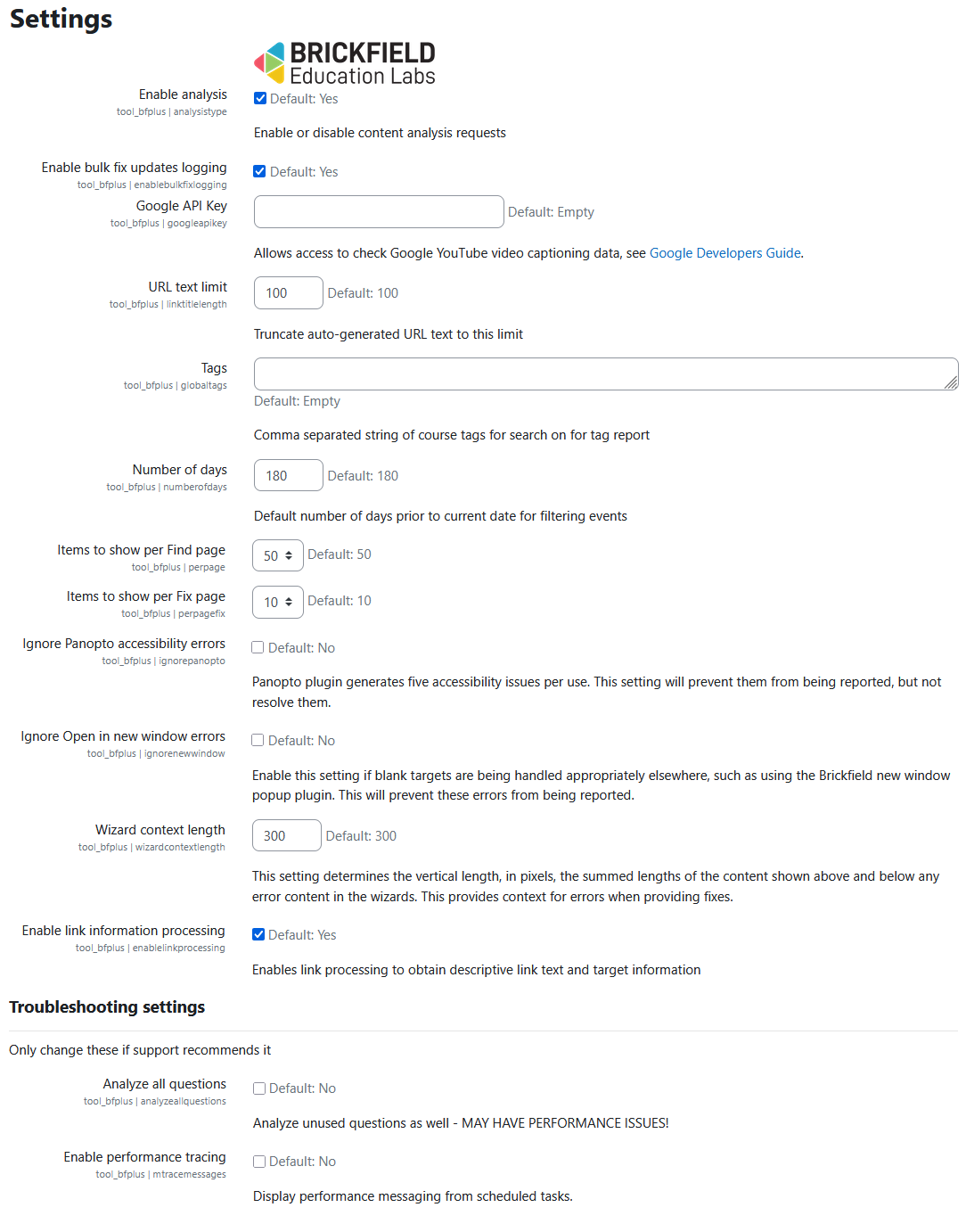
To change the global configuration for the Brickfield Accessibility+ Toolkit, navigate to:
- Site administration > Brickfield Enable > Accessibility administration > Settings
The global configurations are as follows:
- Enable analysis: either disabled, or enabled for requesting course analysis.
- Enable Bulk fix updates logging: whether to log the details from processing bulk fix submissions.
- Google API Key: if supplied, allows access to check any YouTube video’s captioning status, whether existing or not.
- URL Text Limit: the maximum length of a retrieved link from a URL title.
- Tags: configured course tags to show in the tags summary report page.
- Number of days: Default number of days prior to current date for filtering events
- Items to show per Find page: number of table rows to display on the report (Find) pages.
- Items to show per Find page: number of table rows to display on the Fix pages.
- Ignore Panopto accessibility errors: Panopto plugin generates five accessibility issues per use. This setting will prevent them from being reported, but not resolve them
- Wizard context length: This setting determines the vertical length, in pixels, the summed lengths of the content shown above and below any error content in the wizards. This provides context for errors when providing fixes.
- Enable link information processing: Enables link processing to obtain descriptive link text and target information
- Analyze all questions: Analyze unused questions as well
- Enable performance tracing: Display performance messaging from scheduled tasks.
The analysis request setting acts as an opt-in queue for courses to be analysed. This works by only processing courses which have been actively requested to be added to the queue for analysis. This queue of course ids is then analysed by the plugin’s general scheduled tasks and re-analysed whenever changes are made.
Global configurations for the Accessibility+ Review block plugin
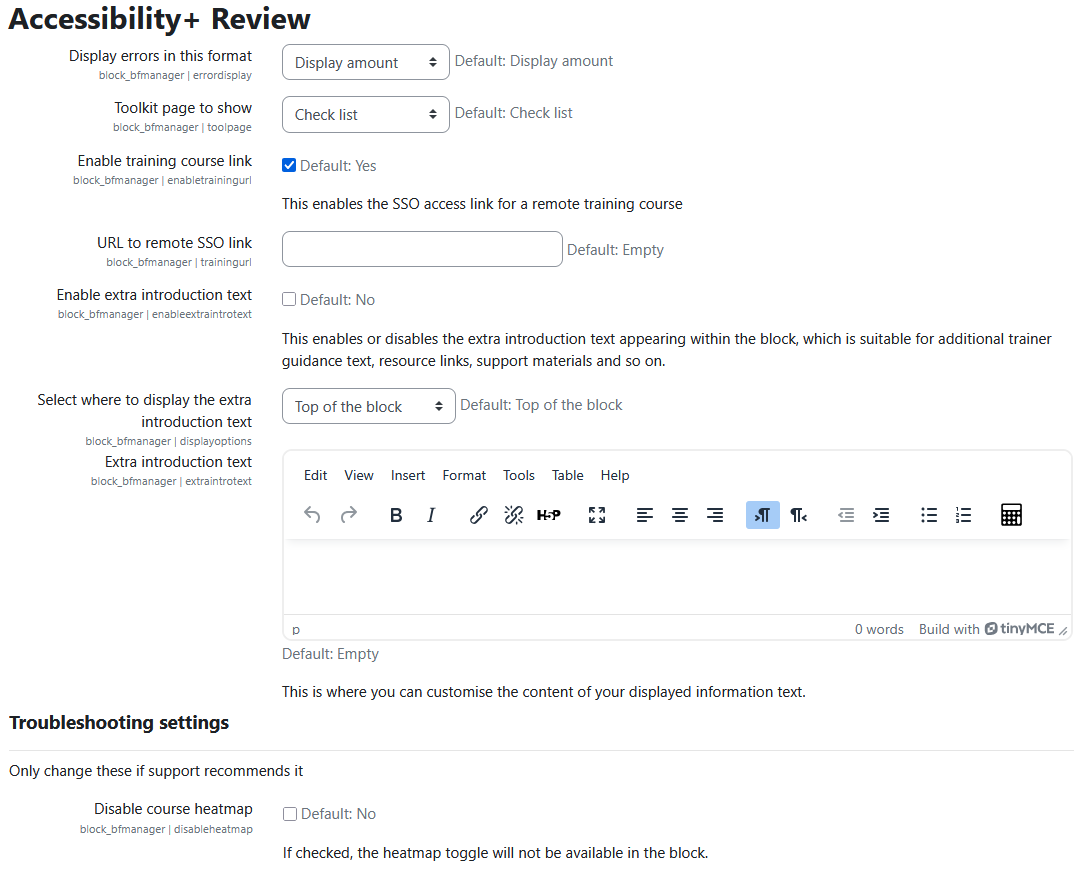
To change the global configurations for the Accessibility+ Review block, navigate to:
- Site administration > Brickfield Enable > Plugins > Accessibility+ Review
The global configurations are as follows:
- Display errors in this format: to display error amounts or percentages or emoticons.
- Toolkit page to show – which toolkit initial page to link to, defaults to the checks list page and the options for individual pages are:
- Overview – overview
- Activity breakdown – activityresults
- Check list – checkresults
- Content types – checktyperesults
- Error list – errors
- Enable training course link: enables the SSO access link for a remote training course.
- URL to remote SSO link: if supplied, allows access to SSO sign up to Brickfield Academy training courses.
- Enable extra introduction text: enable or disable the display of the extra information text.
- Select where to display the extra introduction text: where to locate the display of the extra information text within the block.
- Extra introduction text: the extra information text editing window.
- Disable course heatmap: If checked, the heatmap toggle will not be available in the block.