Brickfield Enable: Scheduling courses for analysis
Table of Contents
Introduction
Course analysis can be requested both with and without the Accessibility+ Review block through accessing the Brickfield Accessibility+ Toolkit via the courses action menu. Regardless of how course analysis has been requested, the results will be processed by the Brickfield Accessibility+ Toolkit.
After some minutes, you’ll see the results of the analysis. Please note that the first time that you run the analysis is not immediate.
This will start the automated analysis of these requested Moodle course against a set of common accessibility rules, checking the content inside all of Moodle’s core activities.
Once a course has been analysed, any ongoing updates or edits or additions within the course will also be analysed automatically, being triggered by Moodle’s event observers / callbacks.
The Brickfield Accessibility+ Toolkit generates reports of all detected accessibility errors, which can also be broken down by type of content or type of activity. This provides insights to educators and organisations on the overall accessibility of their courses and the areas that should be improved.
Requesting course analysis with the Accessibility+ Review block
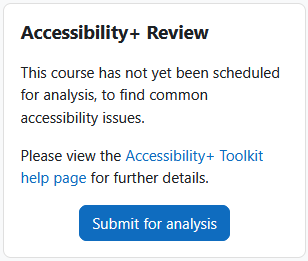
Firstly, to request course analysis with the Accessibility+ Review block, ensure it is added to the course, then:
- Click “Submit for analysis”
Requesting course analysis with the Brickfield Accessibility+ Toolkit
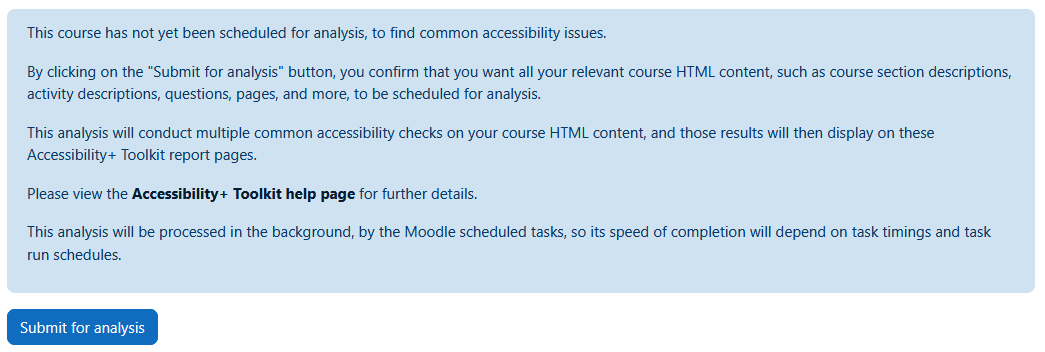
To request course analysis without the Accessibility+ Review block, navigate to the Brickfield Accessibility+ Toolkit via:
- Click the “More” menu in the top right of the course
- Click “Brickfield Accessibility+ Toolkit”
- Click “Submit for analysis”
Requesting course analysis with the Category analysis report
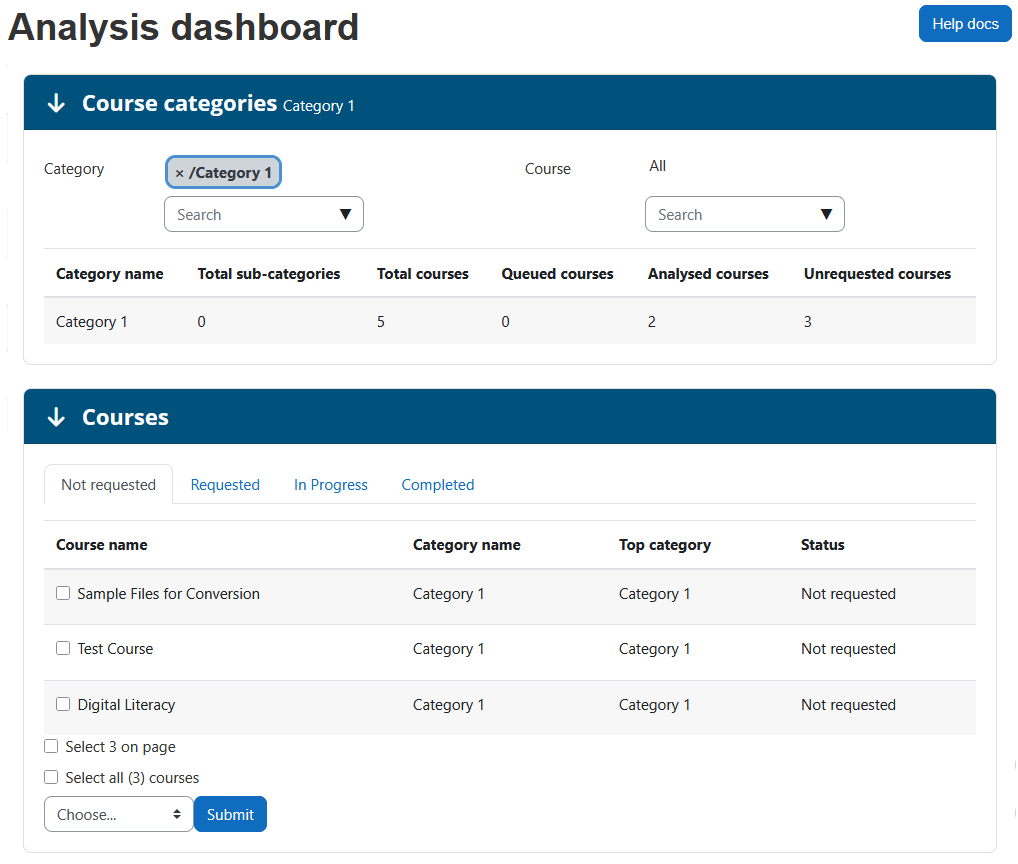
On the category analysis tab, to request multiple categories for analyse:
- Navigate to the Brickfield Accessibility+ Toolkit
- Click the Admin menu, and select the Analysis link.
- Click the check box to the left of the categories name
- Click “Analyse selected categories”