
Brickfield Enable: All Categories page
Introduction
The All Categories page is divided into multiple tabs, which display information related to each top-level course category. The tabular columns represent the different data values for each HTML content type: Image, Layout, Link, and so on.
It has three different views, as tabs:
- “Check errors” to display course error totals per top category.
- “Activities” to display course activities failed per top category.
- “Pass rate” to display course activities pass rate % per top category.
N.B.: In the top right of the All Categories page is a “Help docs” button that will bring your directly to this documentation page.
Where to find the All Categories page
The All Categories page can be accessed via:
- From site administration: Site administration > Brickfield Enable > Accessibility management > Go to reports > Find > Courses, and select “All Categories View” in the dropdown.
- From a course: Course actions menu > Brickfield Accessibility+ Toolkit > Find > Courses > “All Categories View”.
- From the course block: Accessibility+ Review block > View Accessibility+ report (Chart icon) > Find > Courses > “All Categories View”.
How to use the All Categories page
The All Categories page displays three views for the breakdown of categories.
The table displays a row for each category that contains nine parts:
- Category
- Number of analysed courses
- Total activities
- Image
- Layout
- Link
- Media
- Table
- Text
View the error totals per top category
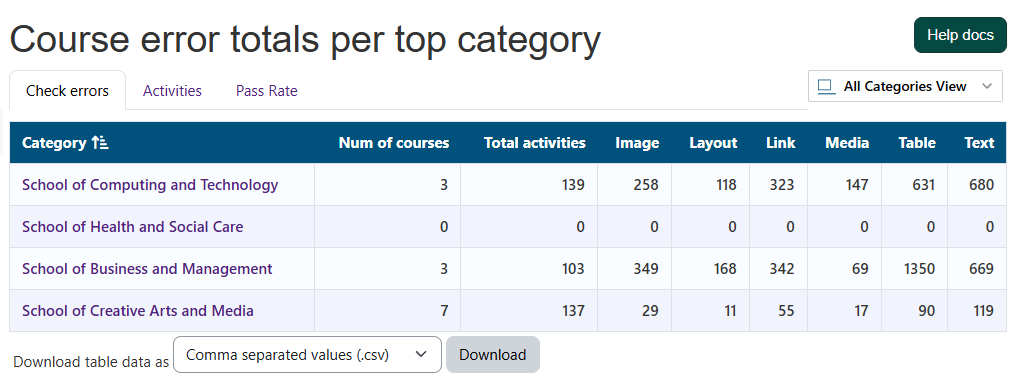
To view the error totals per top category:
- Ensure you are viewing the “All Categories” page.
- Select the “Check errors” tab.
View the activities failed per top category
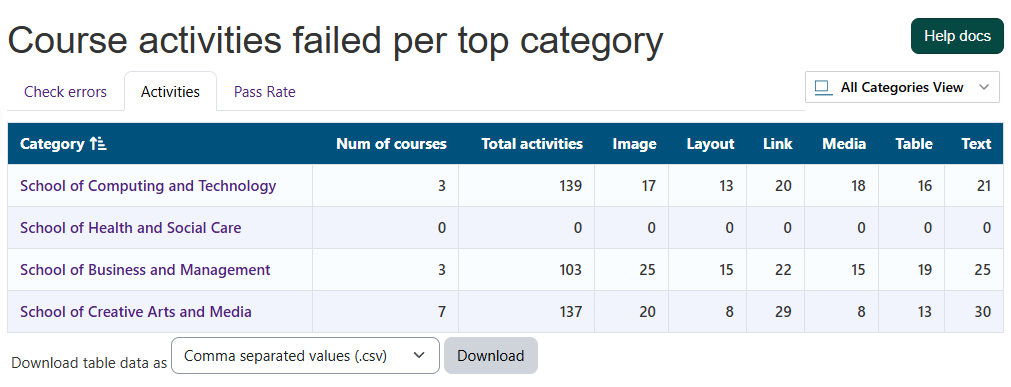
To view the activities failed per top category:
- Ensure you are viewing the “All Categories” page.
- Select the “Activities” tab.
View the activities pass rate % per top category
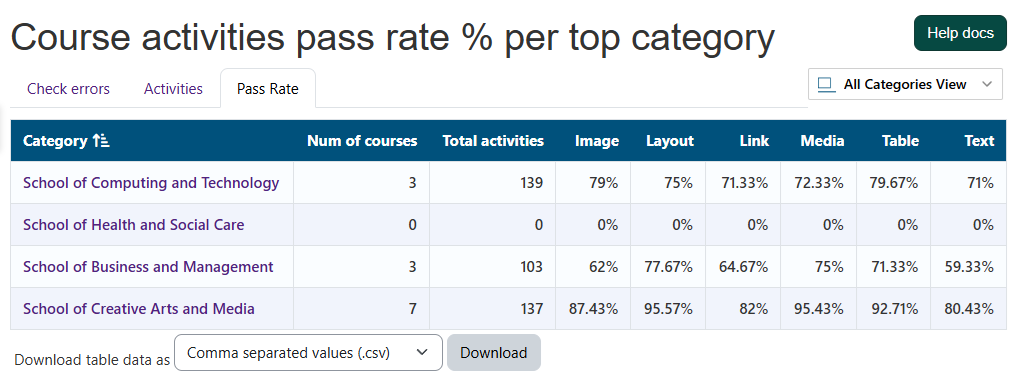
To view the activities pass rate % per top category:
- Ensure you are viewing the “All Categories” page.
- Select the “Pass Rate” tab.
Capability Requirements
Access to the Brickfield Accessibility+ Toolkit is controlled by capabilities and users must have the correct capabilities in the correct context.
- ‘tool/bfplus:viewsystemtools’ capability – To view site level reports and wizards.
- ‘tool/bfplus:viewcoursetools’ capability – To view individual course reports and wizards.
- ‘accessibilityplustool/coursecategories:view’ capability – To view this “All Categories” page, users must have both this and one of the other capabilities mentioned above.
For more information, see: Capabilities.