
Brickfield Enable: Alternate Formats report
Table of Contents
Introduction
The Alternate Formats report displays all the inpidual files which have been converted into alternative file formats for the course, or courses. The number of generated alternate formats for a file, per format such as audio or ebook, is the number of different requested formats with different settings, such as speed, language, font size.
Where to find the Alternate Formats report
The Alternate Formats report can be accessed via:
- Site administration > Plugins > Local plugins > Report for Alternate Formats, and then click on the Alternate Formats tab.
- Course actions menu > More > Reports > File Conversions, and then click on the Alternate Formats tab.
How to use the Alternate Formats report
The Alternate Formats report displays a page which includes a table where each row is one of the files with alternate formats generated.
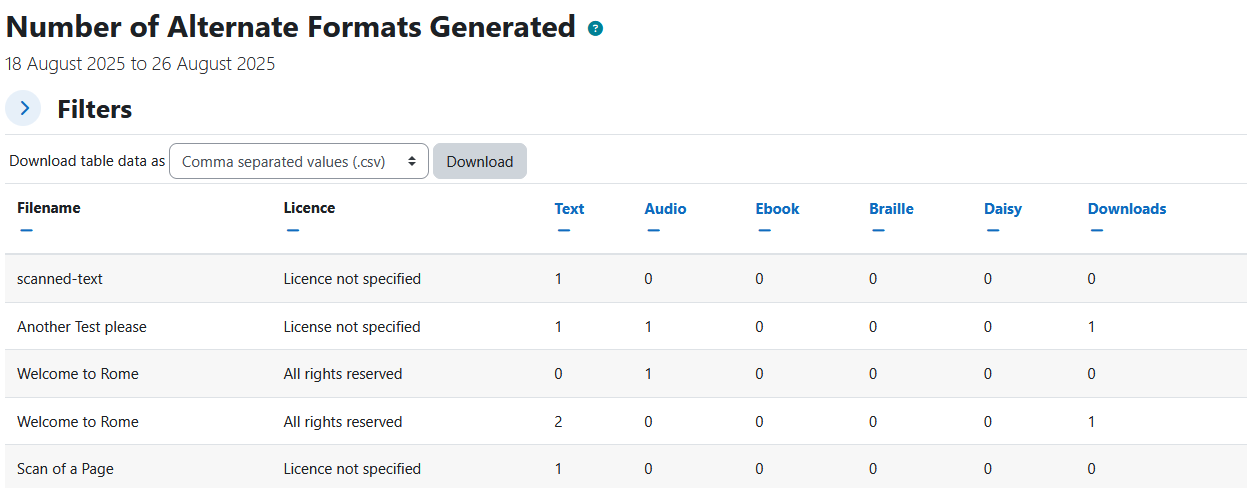
The heading and filtering area of the report will show whether the conversions listed are for one course or many courses.
- If the results are for one course, the course name is displayed.
- If the results are for more than one course, the number of courses is displayed.
The table displays a row for each course that contains eight parts:
- Filename
- Licence
- Text
- Audio
- Ebook
- Braille
- Daisy
- Downloads
View the alternate formats generated for resources in your course(s)
To view the alternate generated for resources in your course(s):
- Ensure you are viewing the “Alternate Formats report”.
- View the table in the report for the breakdown of the alternate formats generated.
The available filters for the Alternate Formats report
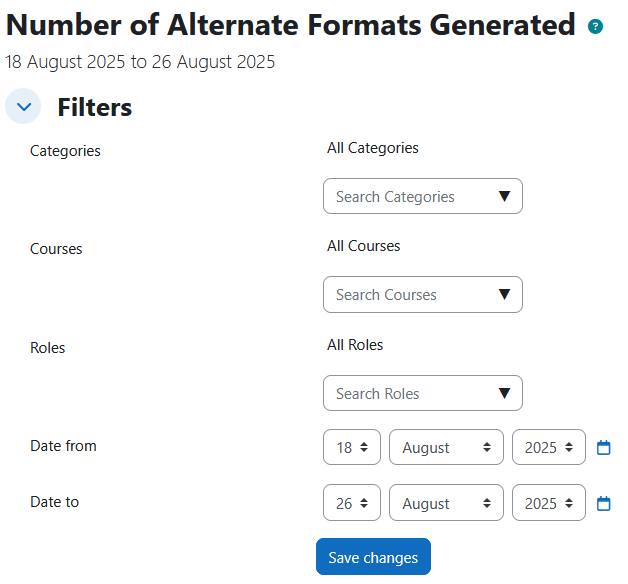
The filters available are:
- Categories *
- Courses *
- Roles
- Date from
- Date to
Please note: Categories and Courses don’t appear if you have landed from an inpidual course’s report link, as it will be filtered on one course already. Use the “View All My Courses tab” to filter on multiple courses or categories.
The available download options for the Alternate Formats report
This Alternate Format reports table data can be usually downloaded as the following, however this is dependent on your Moodle site’s admin settings as to which download options are enabled:
- Comma separated values (.csv)
- Microsoft Excel (.xlsx)
- HTML table
- Javascript Object Notation (.json)
- OpenDocument (.ods)
- Portable Document Format (.pdf)
Capability Requirements
Access to Brickfield Alternate Formats is controlled by capabilities, and users must have the correct capabilities in the correct context.
- ‘local/bfaltformat:viewsystemreport’ capability – View Brickfield Alternate Format Jobs System Report
- ‘local/bfaltformat:viewcoursereport’ capability – View Brickfield Alternate Format Jobs Course Report
For more information, see: Capabilities.