
Brickfield Enable: Course user group upload
Table of Contents
Introduction
The Group Upload block has no global settings to configure. When added to a course, it allows a teacher to upload a CSV file, to create groups and groupings for existing enrolled students, making this process faster and more user-friendly.
Viewing the Course user group uploader block
Access to the Course user group uploader block is controlled by capabilities as outlined below. This block can be added to and viewed from an individual course.
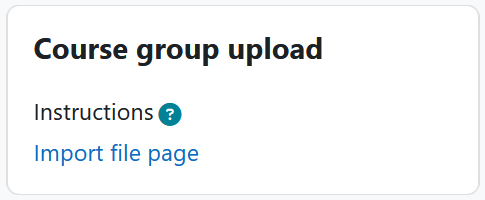
To upload a CSV file. click the “Import file page” link within the Course group upload block.
Import file page
Access to the import file page is controlled by capabilities as outlined below. At the top of the page, it provides CSV upload instructions, which are:
You need three columns in your CSV file for uploading:{useridentifier}, {group name}, {grouping name} (Please note: useridentifier can be either idnumber or email) where the first row should be the header for each column.
| idnumber | group | grouping |
|---|---|---|
| 11250195 | bbgroup5 | bbgrouping |
| 10250328 | chargroup2 | chargrouping |
| 12230918 | lawY26 | law |
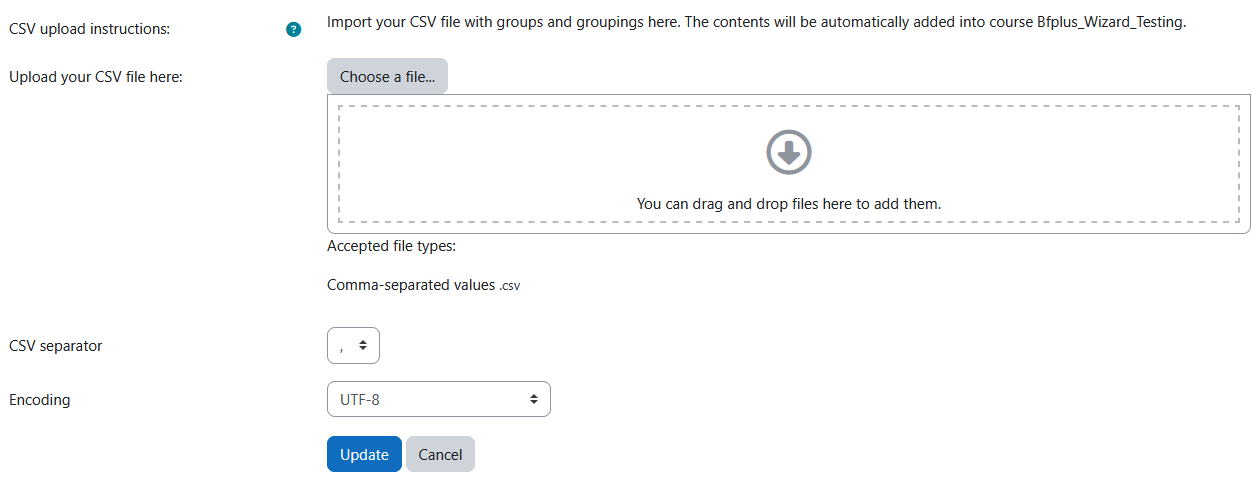
To import groups/grouping in the import file page:
- Upload the CSV into the “Upload your CSV file here:” upload area.
- Select the CSV separator type.
- Select the Encoding type.
- Click “Update”.
CSV file formatting
Your CSV file file should be formatted with three fields per line:
<useridentifier>, <group name>, <grouping name>
If you are using user email as the useridentifier, you MUST include a header (first line) in your csv file of ‘email,group,grouping’.
For each record:
- If the useridentifier is not found in the course, it will print a warning, skip this record and continue;
- If the group/grouping exists, the user will be added to the group/grouping;
- If the group/grouping does not exist, the new group/grouping will be added. (Please note: useridentifier can be either idnumber or email)
Capability Requirements
Access to Course user group upload block is controlled by capabilities and users must have the correct capabilities in the correct context.
- ‘block/course_group_upload:addinstance’ capability – Add a course group upload block
- ‘block/course_group_upload:importfile’ capability – Use the course group upload block
- ‘block/course_group_upload:myaddinstance’ capability – Add a course group upload block to the course page
For more information, see: Capabilities.