
Brickfield Enable: Restricting access to the Accessibility+ Review block
Table of Contents
Introduction
This is to outline the process, or workflow, to allow a Moodle administrator to restrict access by teachers (or lecturers, if named so) to the Accessibility+ Review block.
This is to facilitate an organisation deciding to do a gradual rollout of the Toolkit to a small subset of their teachers initially. This prevents all teachers from being able to add or view the Accessibility+ Review block, without being first added to this subset of teachers with full access.
- Remove the two Accessibility+ Review and one Brickfield Accessibility+ Toolkit plugin capabilities from your normal teacher roles, (the Moodle default roles being editingteacher and teacher)
- Create a new system-level role, called “accessibilitychecker”
- Assign this new system role to whoever needs it in your subset of teachers
Remove permissions from normal teacher roles
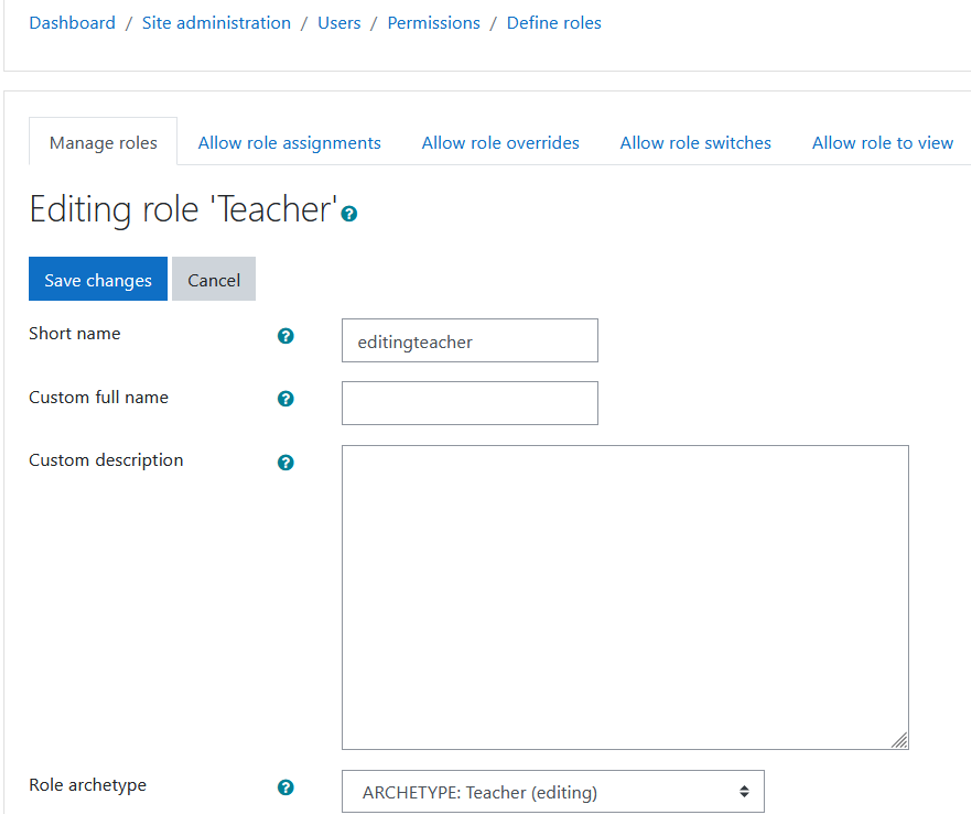
- Go to Site administration > Users > Permissions > Define roles
- Click on the Edit (cog) icon for the Teacher role, with shortname editingteacher (or whichever role(s) you are currently using as your standard normal teacher enrollment)
- Scroll down to the Capability section listing all of the permissions for your normal teacher role
- Click on the Show Advanced button if shown, (if Hide advanced button is showing, you’re already viewing the right details.)
- Set each of the following capabilities to Prevent, for more information, see: Capabilities.
- block/bfmanager:addinstance
- block/bfmanager:view
- tool/bfplus:viewcoursetools
- Scroll to the end of the page and click on Save changes.
Create a new system level role
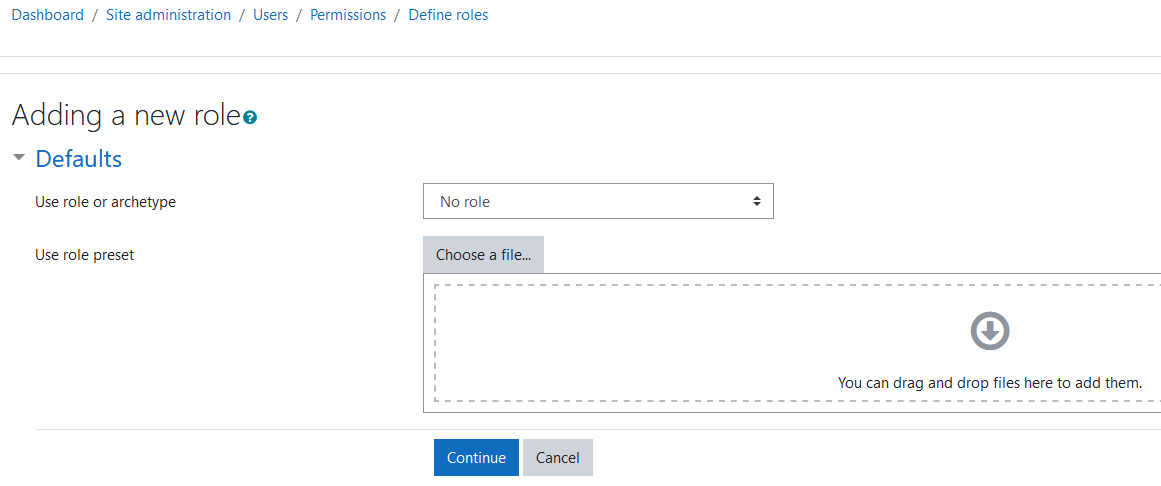
- Go to Site administration > Users > Permissions > Define roles
- Click on Add a new role
- Use No role in the select dropdown for Use role or archetype
- Click on Continue
- Type in accessibilitychecker for Short name
- Type in accessibility checker for Custom full name
- Use None for Role archetype
- Tick System for Context type
- In the capabilities section, set each of the following capabilities to Allow, for more information, see: Capabilities.
- block/bfmanager:addinstance
- block/bfmanager:view
- tool/bfplus:viewcoursetools
- Click on Create this role
Assign new role
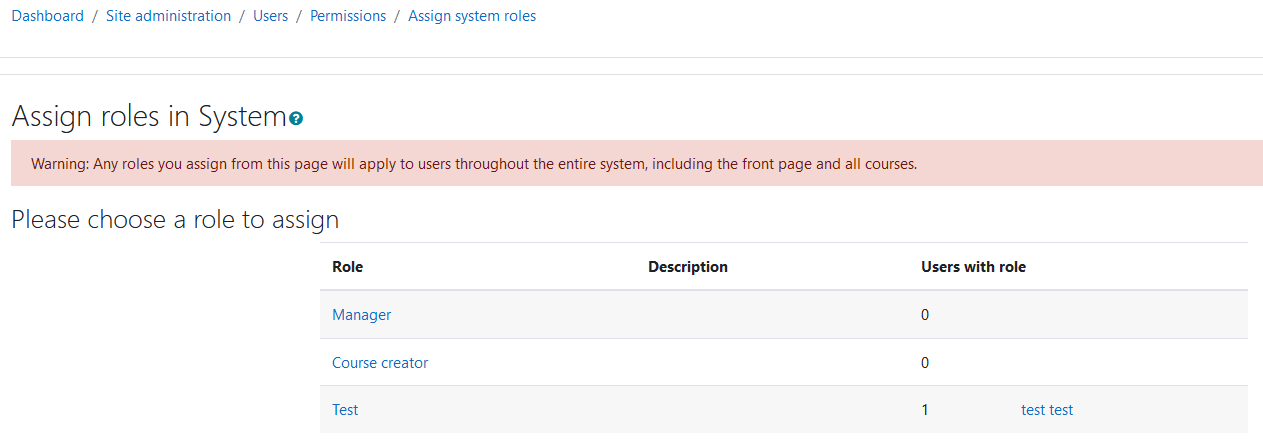
Next, assign this role to users which need it.
- Go to Site administration > Users > Permissions> Assign system roles
- Click on accessibilitychecker
- Click on the user(s) you want to enable with this role in the Potential users section and click on the Add button.
Teachers without the accessibilitychecker system role assigned, will not be able to either add or view the Accessibility+ Review block, hence they will be shielded from the impact of the rollout of the Toolkit to other teachers on the Moodle system.
Drawbacks
Teachers without the accessibilitychecker system role assigned are still able to edit, configure and hide the Accessibility+ Review block, IF it has been already added to the course by another teacher who DOES have permissions to do so. It appears when they go into edit mode. However, the likelihood is that this will not have a huge impact.