
Brickfield Enable: Analysis
Table of Contents
Introduction
The Brickfield Accessibility+ Toolkit analysis and ongoing processing goes on the assumption that your Moodle site is configured with regularly running cron, as always recommended by Moodle HQ for production sites.
However, if you are using the Brickfield Accessibility+ Toolkit on a test site, this may not be the case. Instead, you may have to manually run cron to trigger the different parts of the processes.
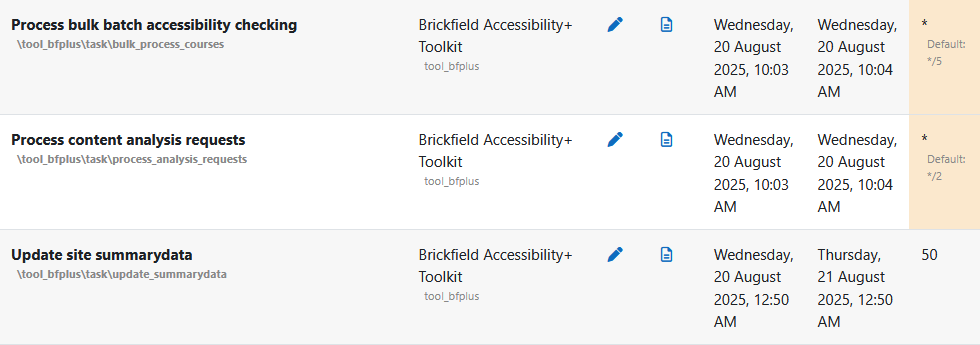
There are three main scheduled tasks which deal with the Brickfield Accessibility+ Toolkit processing of the analysis of the accessibility issues in HTML content.
These are found at Site administration > Server > Tasks > Scheduled tasks.
Running scheduled tasks manually
If your Moodle site is enabled to run tasks individually from this page, using the Run now link, you must run them in this exact order, and all of them once, each time, to mirror a normal cron general run. This is due to the separate tasks being in an established progression, one from each other.
- Process content analysis requests (\tool_bfplus\task\process_analysis_requests).
- Process bulk batch accessibility checking (\tool_bfplus\task\bulk_process_courses).
- Process bulk caching (\tool_bfplus\task\bulk_process_caches).
Brickfield Toolkit
The features of the Brickfield Accessibility+ Toolkit plugin are:
- It houses the data relating to the areas of HTML to be checked.
- It houses the accessibility checks which will be regularly processed.
- It runs its check processing via analysis requests.
- It runs event listeners, for relevant events such as course or module updates, additions, or deletions, so relevant granular repeats of checks may be performed.
- It stores the results and errors of processed checks.
- It allows the site administrator to enable or disable whichever tools (the various reports and fix wizard pages) are available to users.
- It displays the results of the accessibility checks in various reports.
- It provides various fix tools to help bulk fix many of the more straightforward issues.