Brickfield Enable: Brickfield guides
Table of Contents
Introduction
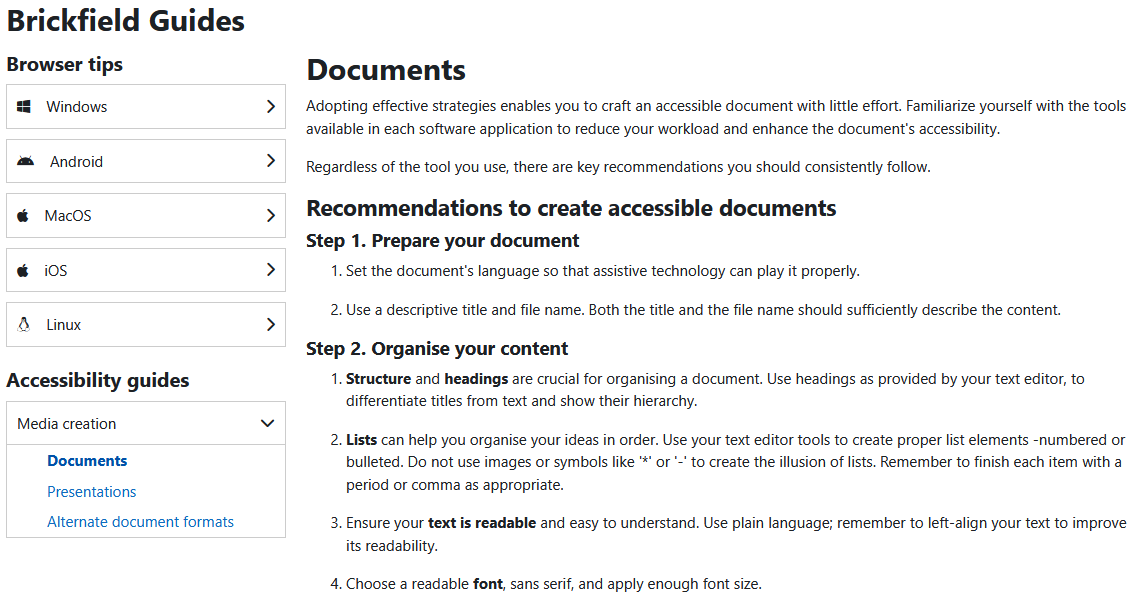
Learn how to leverage your browser’s accessibility features to improve your experience!
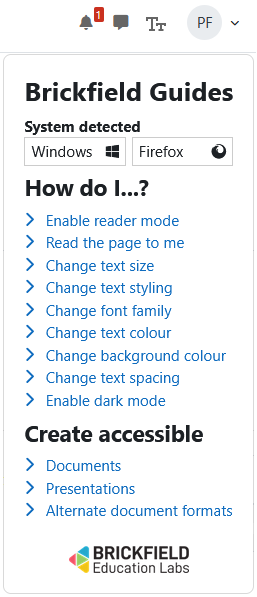
View browser tips on how to do the following across multiple browsers:
- Enable reader mode.
- Read the page to me.
- Change text size.
- Change text styling.
- Change font family.
- Change text colour.
- Change background colour.
- Change text spacing.
- Enable dark mode.
View accessibility guides on:
- Creating accessible documents.
- Creating accessible presentations.
- Creating alternate document formats.
Accessing the guides
To access the guides:
- Go to the site navigation.
- Click the Tt icon.
- Click a guide option.
Viewing the browser tips
By default it will show you the browser tip for your operating system (OS) and browser.
To view the browser tips relevant to you:
- Click the menu for the OS you are using.
- Click the menu for the browser you are using.
- Click the browser tip you would to view.
Viewing the accessibility guides
To view the accessibility guides:
- Click the “Media creation” menu.
- Click the accessibility guide you would like to view.