
Accessibility Toolkit: Content report
Table of Contents
Introduction
The Content report provides a breakdown of the pass rate and error totals per HTML Content type for the course, or courses.
It has two different views, as tabs:
- “Display pass rate” to display the pass/fail per HTML content type.
- “Display error totals” to display the total error count per HTML content type.
Each report view displays the main data in a bar chart, with a toggle to view the chart data.
N.B.: In the top right of the Content report is a “Help docs” button that will bring your directly to this documentation page.
Content type groups explained
In order to summarise and analyse the results of the various checks conducted, we group these checks into different content types. Hence, all image-related accessibility check results are in the “Image” content type group, all layout-related accessibility check results are in the “Layout” content type group, and so on.
Activities are counted as either activities, resources or content areas relating to the courses themselves. Each activity with one or more detected errors in a given content type is counted as failed, otherwise counts as passed. The ratio of passed to failed activities is then displayed per content type.
The content type chart page displays the following information:
- The pass rate tab shows ratio of passed to failed activities in total, per content type, such as Image, Link etc
- The error totals tab shows error breakdown per content type group, such as Image, Link etc
- Can be filtered to show all courses or one individual course
Where to find the Content report
The Content report can be accessed via:
- From Site administration: Site administration > Brickfield Enable > Accessibility management > Go to reports > Find > Content
- From a course: Course actions menu > More > Brickfield Accessibility+ Toolkit > Find > Content
- From the course block: Accessibility+ Review block > View Accessibility+ report (Chart icon) > Find > Content
How to use the Content report
The Content report displays two views for the breakdown of content types. The HTML content types are:
- Image
- Layout
- Link
- Media
- Table
- Text
The heading area of the report will show whether the errors listed are for one course or many courses.
- If the results are for one course, the course name is displayed.
- If the results are for more than one course, the number of courses is displayed.
View the ratio of area instances passed/not per content type
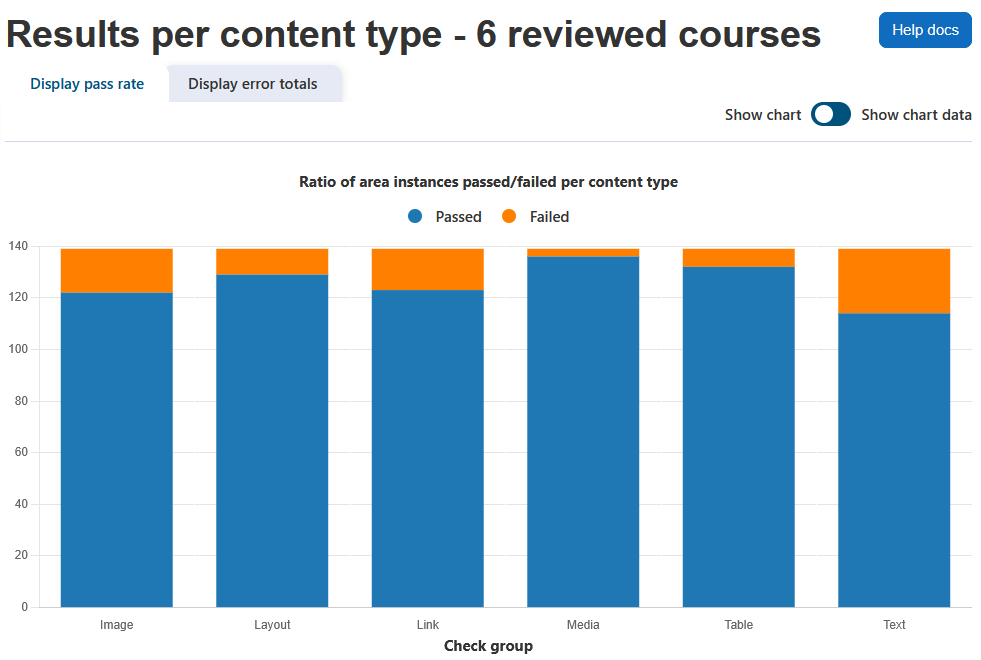
To view the ratio of area instances passed/not per content type:
- Ensure you are viewing the “Content” report.
- Select the “Display pass rate” tab.
View the total (sum) errors per content type
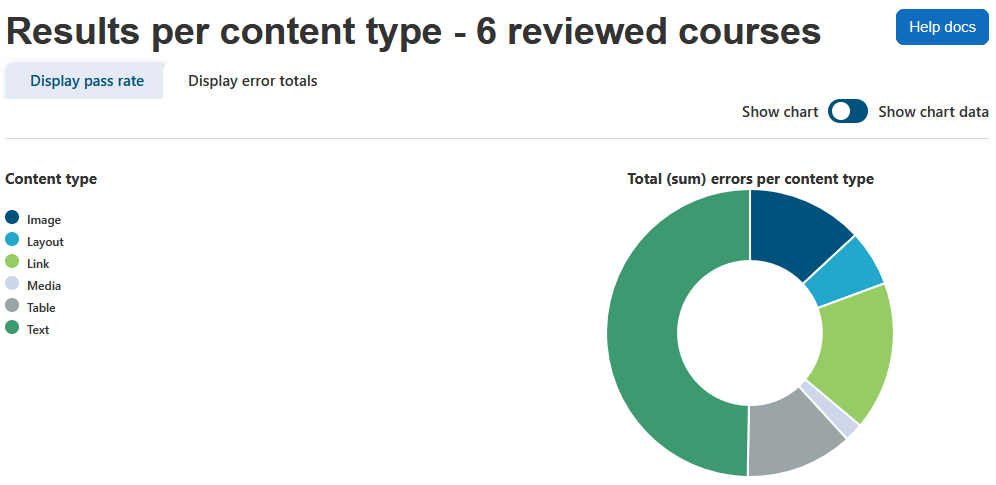
To view the total (sum) errors per content type:
- Ensure you are viewing the “Content” report.
- Select the “Display error totals” tab.
Capability Requirements
Access to the Brickfield Accessibility+ Toolkit is controlled by capabilities and users must have the correct capabilities in the correct context.
- ‘tool/bfplus:viewsystemtools’ capability – To view site level reports and wizards.
- ‘tool/bfplus:viewcoursetools’ capability – To view individual course reports and wizards.
- ‘accessibilityplustool/checktyperesults:view’ capability – To view this Content report, users must have this and one of the capabilities mentioned above.
For more information, see: Capabilities.