Brickfield Enable: Different conversion types
Table of Contents
Introduction
The Conversion types that are available when requesting a file conversion are dependent on the file type, so in this example case for a Word document, the conversion types with their respective settings are as follows:
- Conversion type: Text
- Format: PDF – Tagged PDF, txt – Plain text
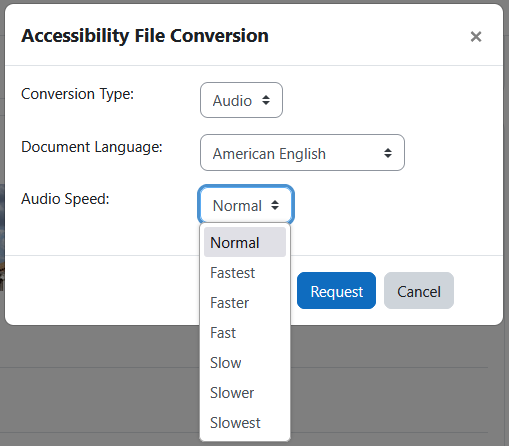
- Conversion type: Audio
- Document language
- Audio Speed
- Conversion type: Ebook
- Format: MOBI (Kindle), EPUB, EPUB3 with media overlay
- Base Font Size
- Conversion type: Daisy
- Format: Talking book
- Conversion type: Braille
- Output Format: Pef, NACB, Unicode, UTF8
- Contraction: Grade 1, Grade 2
- Page numbering: None, right, left
- Duplex (Pef only): No, Yes
Each different conversion type has a different range of formats on offer. For instance, if the user selects the Audio type, they then can select the language that the original document has been composed in, and the speed that they want the audio to be converted to, as different usages of audio benefit from different ranges of speed.