
Brickfield Enable: File licences report
Table of Contents
Introduction
The File Licence report plugin, allows a user with the relevant capability( admin, manager or editing teacher) to have a single page view of all the file licence settings for a particular course, and the ability to edit and save them, either with different individual licence settings or else one single licence setting for all, in one go.
Viewing the File Licences report
Access to the File Licences report is controlled by capabilities as outlined below and can be accessed via:
- course’s Actions menu (Boost theme) > more > Reports > Licences
- course administration block (Classic theme) > Reports > Licences
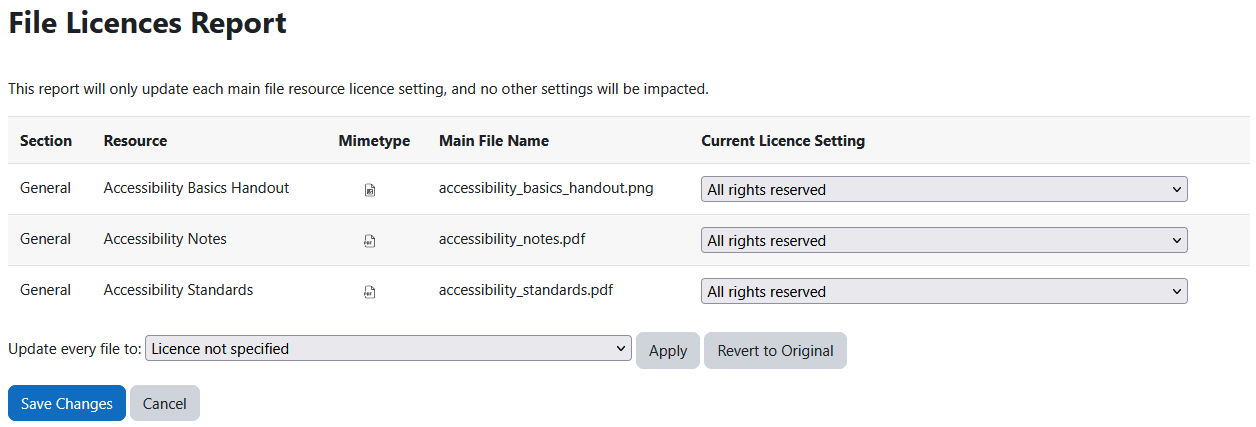
The File Licences report displays the following details for each course file resource:
- Section: name of the course section
- Resource: name of the course file resource
- Mimetype: icon of the course file resources extension
- Main File Name: the file name name within the course file resource
- Current Licence Setting – a dropdown menu to select default and custom licences:
- Licence not specified
- All rights reserved
- Public domain
- Creative Commons
- Creative Commons – NoDerivs
- Creative Commons – No Commerical NoDerivs
- Creative Commons – No Commerical
- Creative Commons – No Commerical ShareAlike
- Creative Commons – ShareAlike
You also have the option to update the licence of every listed course file resource in bulk with the “Update every file to:” option at the bottom of the report.
Capability Requirements
Access to the File Licences report is controlled by capabilities and users must have the correct capabilities in the correct context.
- ‘report/editlicence:view’ capability – Can view edit licence report
For more information, see: Capabilities.