Brickfield Enable: Portal registration
Table of Contents
Registration
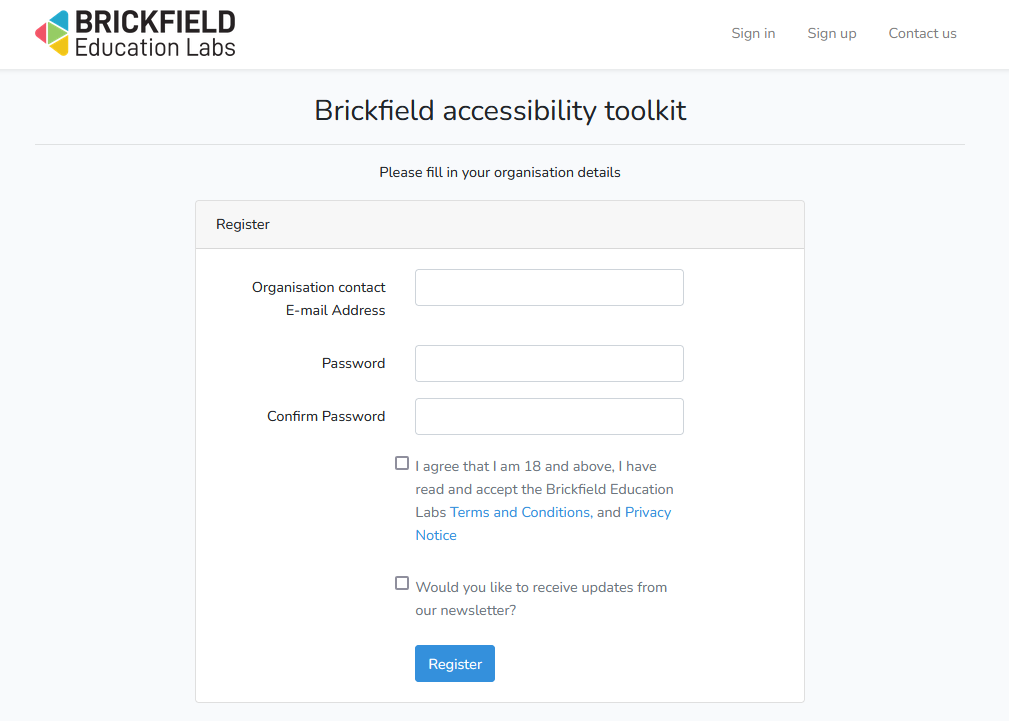
The main Accessibility+ tool needs to be configured with registration keys, which are provided once your institution’s site has been registered on the Brickfield portal site.
The steps to register your account are:
- Go to the Brickfield portal site.
- Create an account for your institution on the Sign up page, if one has not been created already.
- Please use a general institution’s email contact, such as techsupport@yourinstitute.com, as we prefer not to use any personal email addresses for GDPR reasons.
- Once signed up and logged in, go to the My Sites page.
- Click on the New Site button.
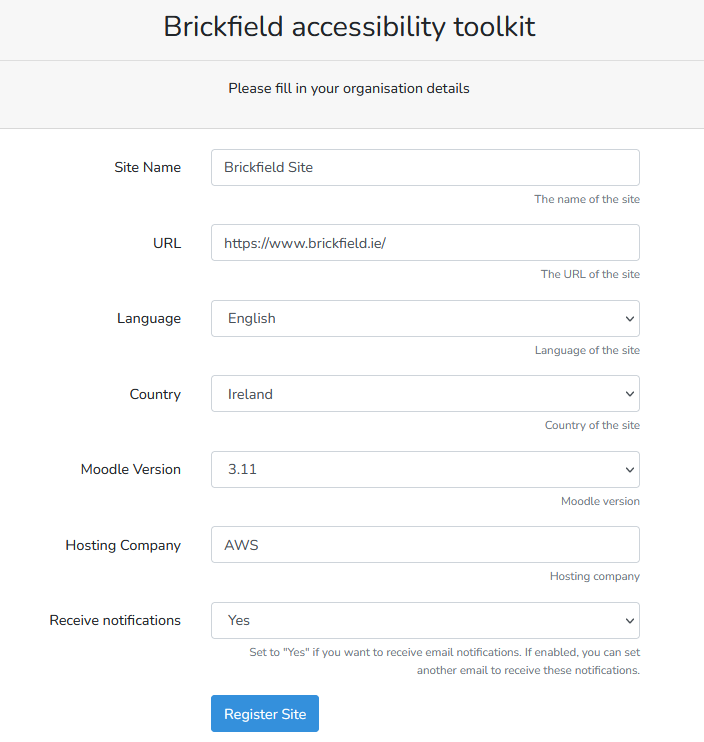
- Fill in the site details as follows:
- Site Name – this is your site description, which can be anything.
- URL – this MUST exactly match your site’s public URL, as it will be matched with it as part of the registration process.
- Language.
- Country.
- Moodle Version.
- Hosting Company.
- Receive notifications.
- Click on the Register Site button to submit these details.