
Brickfield Enable: Summary report
Table of Contents
Introduction
The Summary report provides a breakdown of the errors found within an individual course or across the site and is a combination of many of the Find tools found within the Brickfield Accessibility+ Toolkit.
You can also download a PDF transcript of the course with the “Download PDF” link located in the top right of the report.
N.B.: In the top right of the Summary report is a “Help docs” button that will bring your directly to this documentation page.
Where to find the Summary report
The Summary report can be accessed via:
- From site administration: Site administration > Brickfield Enable > Accessibility management > Go to reports > Admin > Summary
- From a course: Course actions menu > More > Brickfield Accessibility+ Toolkit > Find > Summary
- From the course block: Accessibility+ Review block > View Accessibility+ report (Chart icon) > Find > Summary
How to use the Summary report
The Summary report displays five tables for the breakdown of errors:
- “Top errors” displays the accessibility checks with the highest number of errors found.
- “Failed activities” displays the activities with the highest number of errors found.
- “Check errors” displays the total errors found per HTML content type.
- “Activity pass ratio” displays the total number of passed and failed activities for each type.
- “Error details” displays the first 10 errors found.
Download the accessibility PDF transcript
The accessibility PDF transcript can also be downloaded from the Accessibility+ Review block.
To download the accessibility PDF transcript:
- Ensure you are viewing the “Summary report”.
- Select the “Download PDF” link.
View the breakdowns of the errors across the site
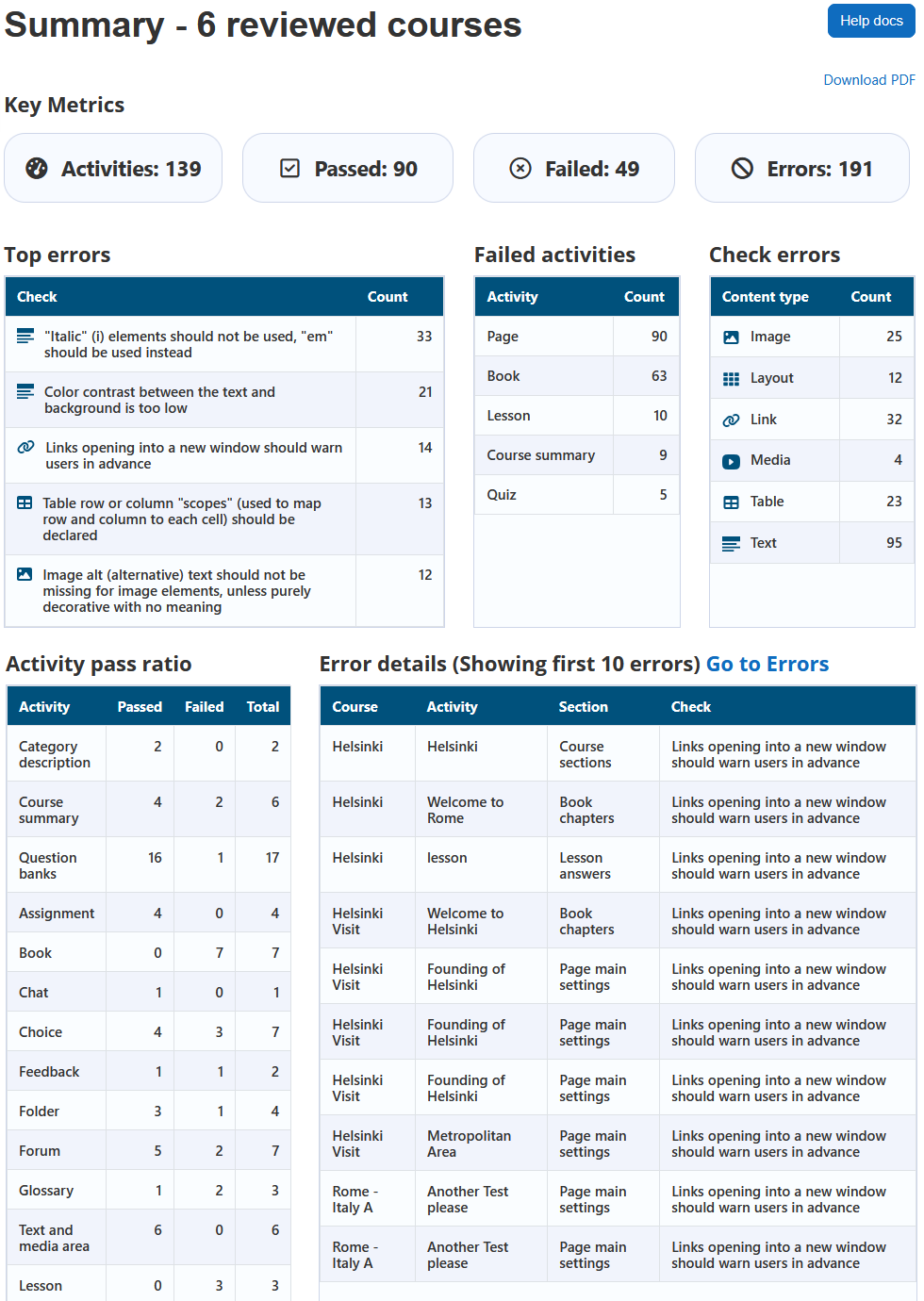
To view the breakdowns of the errors in the course:
- Ensure you are viewing the “Summary report”.
- View each table in the report for a different breakdown of the errors.
Capability Requirements
Access to the Brickfield Accessibility+ Toolkit is controlled by capabilities and users must have the correct capabilities in the correct context.
- ‘tool/bfplus:viewsystemtools’ capability – To view site level reports and wizards.
- ‘tool/bfplus:viewcoursetools’ capability – To view individual course reports and wizards.
- ‘accessibilityplustool/printable:view’ capability – To view this Summary report, users must have this and one of the capabilities mentioned above.
For more information, see: Capabilities.