
Used Questions: Site administrator
Introduction
This report will allow you to migrate all of your actively used questions from one course to another.
To migrate actively used questions between courses, you must have editing teacher capabilities in both.
Administration
This section is for the administration of the Brickfield Current Questions report.
Version Support
The Brickfield Current Questions report is supported for Moodle versions 4.1, 4.2, 4.3, 4.4, and 4.5.
Deployment
To install the Brickfield Current Questions report (report_bfcurrentquestions):
- Unzip and copy the bfcurrentquestions folder into Moodle’s report/ folder.
- Go to Site administration > Notifications to install the tool.
Further installation instructions can be found on the Installing plugins Moodle documentation page.
Capabilities
| Capability name | Manager | Teacher | Student | Auth user |
|---|---|---|---|---|
| report/bfcurrentquestions:view: View Brickfield Used Questions Report | Allow | Alow |
View capability
The capability “report/bfcurrentquestions:view” allows users with the relevant permissions for that context to view the Brickfield Current Questions report.
This capability is granted by default to these following archetype roles, using system context:
- Manager
- Teacher
Copyright and funding
The Brickfield Current Questions report has been developed, maintained, and is copyrighted by Brickfield Education Labs.
Usage as site administrator
Migrate questions currently in use from courses across your site.
Migrating actively used questions
To migrate actively used questions from one course to another:
- Go to Site administration.
- Click the Reports tab.
- Click the Brickfield Used Questions Report link.
- For the course you want to migrate questions from, click the Migrate Used Questions link.
- Click the Next: Choose destination button.
- In the Course dropdown, select a course to migrate the questions to.
- In the Question Category dropdown, select a question category in the destination course into which to migrate.
- Click the Copy X question(s) to destination course button.
- A confirmation message will display if the migration is successful.
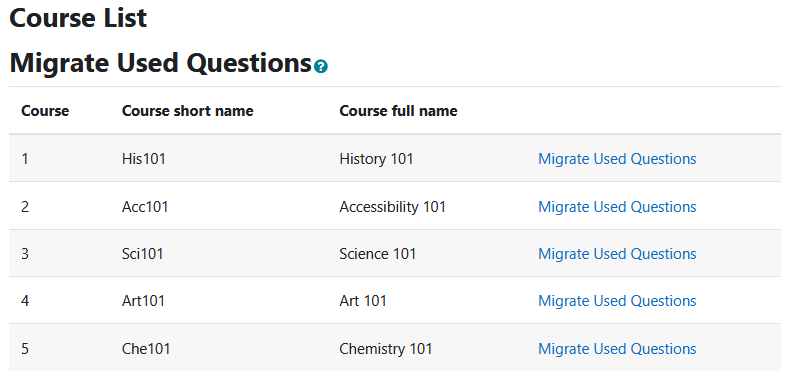
Used Questions Identification Logic
This plugin migrates all used questions from the starting course to the selected destination course. There is also an additional logic to just retrieve the latest version of any given question. There are a few ways the plugin finds questions to migrate. At a code level, this mostly happens in the \report_bfcurrentquestions\packager::get_used_questions() method.
Directly Referenced Questions
The plugin first looks for questions that belong to the course. This covers either the course question bank, or questions created directly in quizzes.
It then determines which questions are used by looking for an entry in the question_references table. This table holds information about where questions are used in Moodle.
Random Questions
For random questions, the plugin includes all questions in the category the random question references. As random questions could choose any question from their configured category, any question in that category is considered by the plugin to be “used”.