
Accessibility Toolkit: Fix bold
Table of Contents
Introduction
The Fix bold wizard provides you with “bold” errors for the course and updates the formatting of bold text into the correct HTML tag, from the <b> tag to a <strong> tag to help fix them quickly.
The <b> (bold) element, or tag, provides no emphasis of text for non-sighted readers. Use the correct <strong> tag instead.
Impact of using b instead of strong
The <b> (bold) element only conveys appearance, whereas the <strong> element conveys meaning to all.
Where to find the Fix bold wizard
The Fix bold wizard can be accessed via:
- From a course: Course actions menu > Brickfield Accessibility+ Toolkit > Go to wizards > Fix bold.
- From the course block: Accessibility+ Review block > View Accessibility+ Report (Chart icon) > Go to wizards > Fix bold.
- From the Check list report: The “Fix” link that’s available for the “Bold (b) elements should not be used, “strong” should be used instead” check.
How to use the Fix bold wizard
The Fix bold wizard displays a page which includes a table where each row is one of the bold tags found that is using <b>.
The Fix bold wizard provides the ability to:
- Submit bold tag updates in bulk.
- Make an exception by hiding an inpidual error.
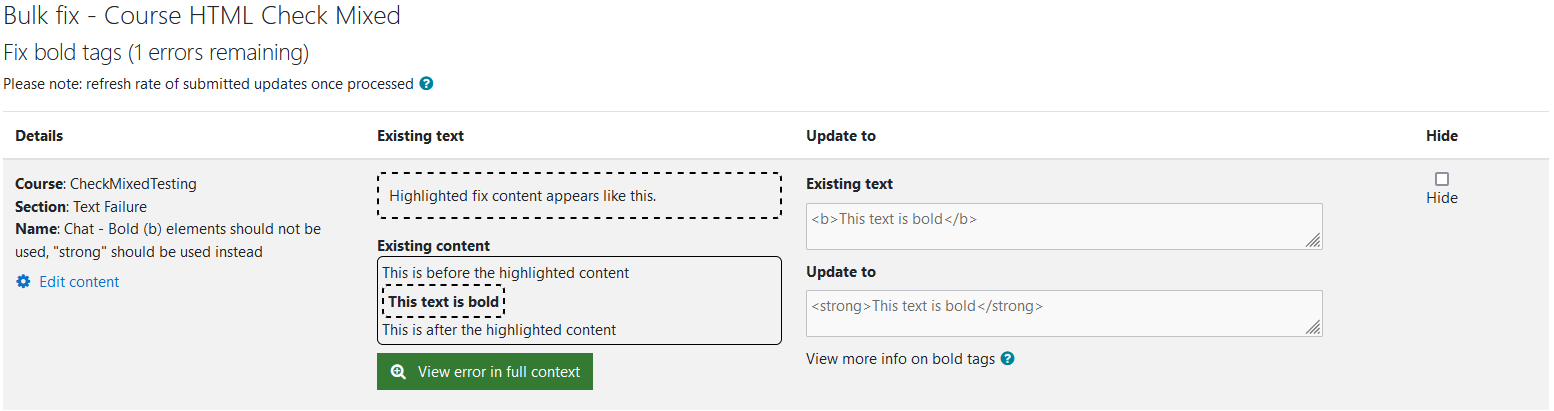
The heading area of the wizard will show how many errors are found, and the course name.
The table displays a row for each error that contains four parts:
- Details
- Course Name.
- Course Section.
- Activity name.
- The link to Edit the content.
- Existing context
- Existing content.
- The button to view the error in its full context.
- Update to
- Existing text.
- Update to.
- Hide – The checkbox to hide the error when submitted.
Submit updates for bulk fixing
When updates to the errors are submitted for bulk fixing, it will only process the errors on the current page. All fixed errors are temporarily logged and can be reverted if needed in the Bulk fix log.
To submit updates to the errors for bulk fixing:
- Ensure you are viewing the Fix bold wizard.
- If you want to hide this error, select the “Hide” checkbox.
- Select the “Submit Bulk fixing” button to submit all the updates at once.
All hidden errors are located in the Exception Management page.