
Brickfield Mobile: Site administrator
Introduction
This Mobile authentication plugin (auth_bfmobile) enables a Passwordless sign in for Moodle by mobile number plus a one time code. It is designed as an accessibility-first on-ramp for users who cannot use traditional credentials — for example older learners who do not use email, learners who do not remember their password, or learners whose accounts are administered for them by family members.
Administration
This section is for the administration of the Brickfield Mobile Authentication plugin.
Version Support
This plugin has been developed to work on Moodle releases 4.5, 5.0, 5.1, and 5.2.
Installation
To install the Brickfield mobile authentication plugin (auth-bfmobile):
- Unzip and copy the bfmobile folder into Moodle’s auth/ folder.
- Go to Site administration > Notifications to install the plugin.
- Enable the plugin at Site administration → Plugins → Authentication → Manage authentication. Tick the enable column for Brickfield Mobile.
Further installation instructions can be found on the Installing plugins Moodle documentation page.
What it does
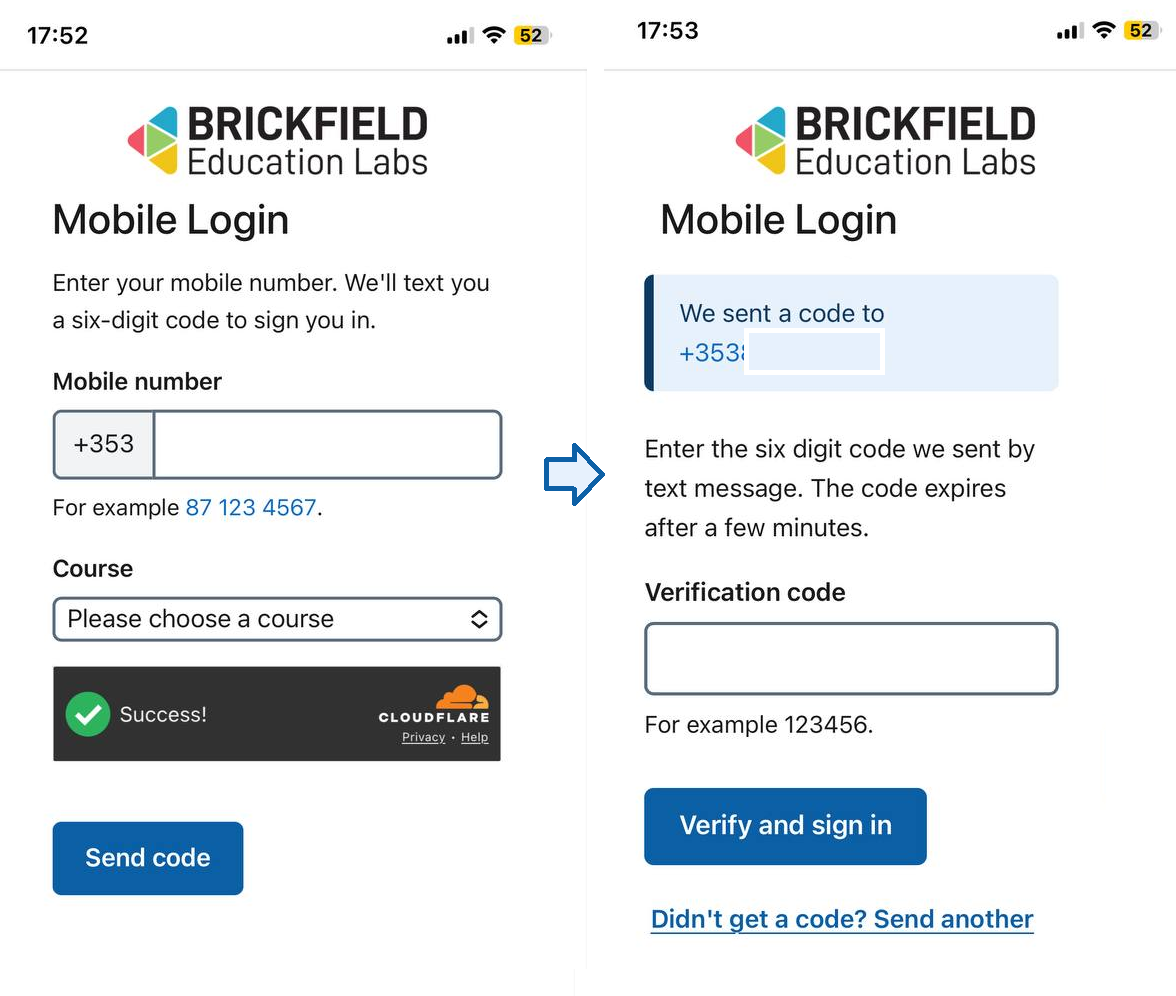
Users go to a dedicated URL provided by their institution (typically distributed via leaflet, QR code, or course outreach). They enter their mobile number, receive a one time code by text message, type the code, and are logged in to Moodle. If the number is new, an account is created automatically.
The plugin does not appear on the standard Moodle login page. The institution’s existing login methods continue to work unchanged for everyone else.
How it differs from a normal auth plugin
The login page is the plugin’s own page at /auth/bfmobile/login.php, not the standard /login/index.php.
Users authenticate via SMS code, not username and password. Users created by this plugin have no password and cannot set one.
The plugin can optionally auto-enrol users into a configured course immediately after sign in — useful for course-specific outreach campaigns.
Configuration
Go to Site administration → Plugins → Authentication → Brickfield Mobile.
Twilio Verify
Create a Verify Service in the Twilio Console under Verify → Services. Enable the SMS channel. Enter the Account SID, Auth Token, and Verify Service SID (starts with VA) into the plugin settings.
Cloudflare Turnstile
Create a Turnstile site in the Cloudflare dashboard for your Moodle’s hostname. Choose the Managed widget type. Enter the Site Key and Secret Key into the plugin settings.
Identity
The default region (e.g. IE) is used to interpret phone numbers typed without a country code. For sites with a single primary country, the international dialling code (e.g. +353) is shown as a non-editable prefix next to the phone field so learners only need to type their local number. Twenty-five regions are supported out of the box: IE, GB, US, CA, AU, NZ, DE, FR, ES, IT, NL, BE, LU, PT, SE, DK, FI, NO, PL, AT, CH, CZ, HU, GR, RO. Other regions fall back to a single-input layout.
The username and email templates control how synthetic accounts are named. The defaults (mobile_{digits} and {digits}@mobile.{sitehost}) are sensible for most sites.
Throttling
The defaults (5 codes per number per hour, 15 per IP per hour, 30-second cooldown between sends) are conservative. Twilio Verify has its own server-side limits as an authoritative backstop, so these can be relaxed during cohort onboarding if needed.
Course allowlist and enrolment
Enter a comma-separated list of course IDs. Only courses on this list can be auto-enrolled into through the plugin. The login page shows a dropdown of these courses for users to choose from. The role used for auto-enrolment defaults to Student.
Distributing the login URL
Direct users to:
https://yourmoodlesite/auth/bfmobile/login.php
URL parameter:
?course=N — when N is an integer course ID on the allowlist, the plugin enters locked-in mode: the dropdown is hidden, the user signs in by phone, and they are auto-enrolled in course N and sent there.
Useful for per-leaflet or per-QR-code targeting where each piece of marketing points at a specific course.
When the URL parameter is absent (or N is not on the allowlist), the plugin falls back to dropdown mode (showing the full allowlist) or no-course mode (when the allowlist is empty), depending on configuration.
Examples:
- /auth/bfmobile/login.php?course=42 — locked-in: leaflet for course 42; the user is enrolled and lands on the course.
- /auth/bfmobile/login.php — dropdown if the allowlist has entries, else no-course mode and a redirect to the configured default URL.
- /auth/bfmobile/login.php?course=999999 — silently ignored if 999999 is not on the allowlist; falls through to dropdown or no-course mode.
Course IDs are not stable across environments. A backup/restore can renumber courses. Validate distribution URLs against the current production database before each print run.
What happens to users over time
Users start as synthetic accounts named “Phone User 4567” (with the last four digits). They can edit their profile to set a real first name, last name, email, and (if site policy allows) a password. Because the plugin matches on idnumber rather than email or username, those edits do not break their next sign in — they keep logging in via the phone number, and the other fields become useful for normal Moodle features (gradebook, messaging, certificates).
This means the plugin is an on-ramp, not a cage. Users who gain confidence over time can transition to using Moodle the normal way without losing their progress.
What happens when someone loses their number
A site administrator updates the user’s idnumber field (e.g. blank it, or set it to their new number) using the standard Moodle user profile editor.
The user can then sign in with the new number. The plugin does not need a separate UI for this.
Requirements
- Moodle 4.5 LTS or later.
- A Twilio account with a Verify Service configured for SMS.
- A Cloudflare account (free) with a Turnstile site configured for the institution’s domain.
- Manual enrolment plugin enabled (it is, by default).
External services and third party resources
This plugin requires the operator to hold accounts with, and accept the terms of, the following external services. Reviewers and procurement should be aware of all four. The fourth, the webhook receiver, is optional and is only contacted if the site administrator configures a webhook URL.
- Twilio Verify — phone numbers are sent to Twilio over HTTPS. Twilio sends an SMS to the user containing a one time code, and on the verify call receives the code the user typed back. Operator pays Twilio per verification.
- Cloudflare Turnstile — the requesting browser’s IP address is sent to Cloudflare over HTTPS during the human verification check on the send-code step. Free at any volume.
- Cloudflare Turnstile JavaScript — the login page loads the Turnstile widget script from https://challenges.cloudflare.com/turnstile/v0/api.js. This is loaded directly from Cloudflare and not bundled with the plugin; that is required for the widget to function as intended. There is no other client-side JavaScript loaded from any third party.
- Webhook receiver (optional) — if the site administrator configures a webhook URL in plugin settings, user and course identifiers are POSTed to that URL after a successful sign in and/or enrolment. The URL must be HTTPS and cannot point at private, loopback or link-local addresses (an SSRF defence). Webhook delivery is asynchronous via Moodle’s task queue, with optional HMAC-SHA256 request signing for the receiver to verify authenticity.
All credentials for the above services are configured by the site operator in plugin settings and are never transmitted anywhere except to the named services.
Privacy and data flows
The plugin stores the phone number in user.idnumber. It sends:
The phone number to Twilio so that Twilio can deliver and verify the one time code. The requesting browser’s IP address to Cloudflare so that Cloudflare Turnstile can verify the request is not automated.
If a webhook URL is configured by the site administrator, user identifiers (Moodle user ID, phone number, first name, last name) and course identifiers (course ID, shortname, fullname) to the configured webhook receiver after a successful sign in and/or enrolment.
OTP send, verify, registration and enrolment events are recorded in Moodle’s standard log. The phone number is included in the event payload so support staff can correlate sign in attempts via the included report.
When a webhook is configured, the payload to be delivered is briefly stored in the Moodle ad-hoc task queue between event firing and cron delivery. The row is removed once delivery succeeds.
See the privacy provider for full metadata and Site administration → Users → Privacy and policies for export and delete behaviour.
Copyright and support
This plugin is developed and maintained by Brickfield Education Labs. Brickfield Education Lab is able to provide support for this plugin.
Licence
GPL v3 or later, in line with Moodle itself.