Brickfield Enable: Toolkit registration
Table of Contents
Registration
The following steps can only be completed if Portal registration has been completed first.
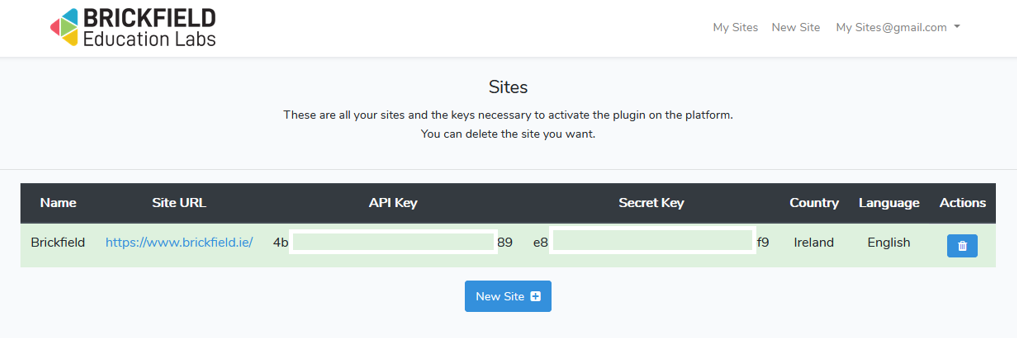
- On the My Sites page, you will now see a table with your site name, URL, API key, and Secret key. The API key and Secret key values need to be copied and submitted into your Toolkit registration page.
- Contact your Brickfield support through “Submit a request” at the top-right corner of this site, so we can review your site details and confirm your toolkit status.
- Once confirmed, your API key and Secret key values will be ready to complete the registration.
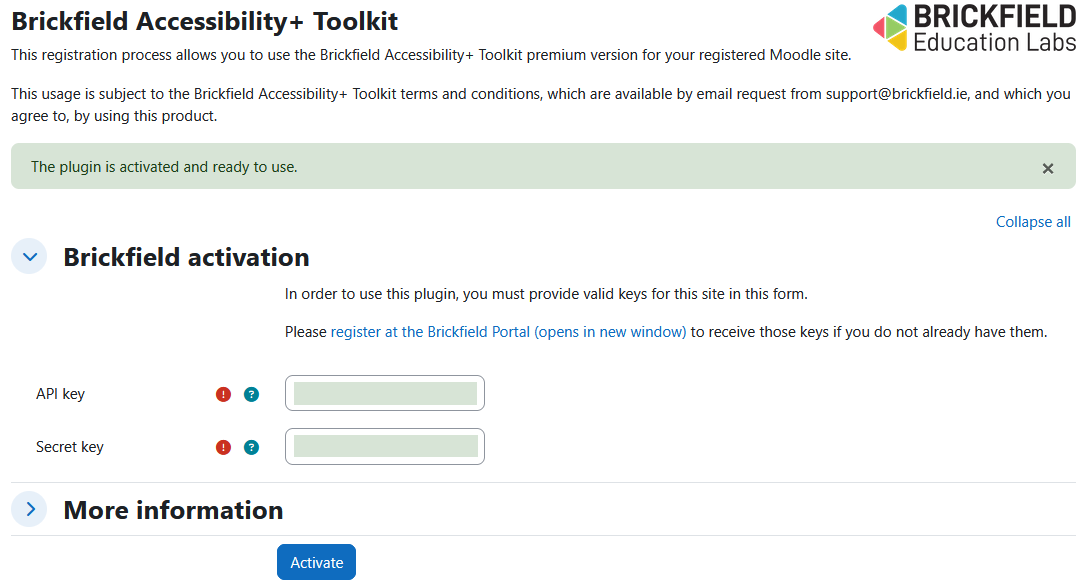
- On your Moodle site, go to the Brickfield Toolkit registration page, at Site administration > Brickfield Enable > Account area > Brickfield registration.
- Enter your API key and Secret key values.
- Click on the Activate button.
- Your registration page should now display the message “The plugin is activated and ready to use.”. If not, please contact your Brickfield support for further assistance.