
Brickfield Enable: List of bulk fixes
Table of Contents
Introduction
This Bulk Fixes page provides a list of former accessibility errors that have since been fixed through the available wizards. The user is shown the logged records of each HTML change generated when using one of the fix wizards.
Previously, there was a Restore option, but this has now been discontinued.
Logging and viewing this information is dependent on some configurations, as follows:
- The Moodle installation length of time for retaining all logs.
- For instance, the default standard log’s configuration is called “logstore_standard | loglifetime”.
- The Brickfield Accessibility+ Toolkit configuration “enablebulkfixlogging” needs to be enabled, which it is by default, to change this, see – Configurations.
Where to find the Bulk fixes log
The Bulk fixes page can be accessed via:
- From Site administration: Site administration > Brickfield Enable > Accessibility management > Go to wizards > Fix > Fixes
- From a course: Course actions menu > More > Brickfield Accessibility+ Toolkit > Fix > Fixes
- From the course block: Accessibility+ Review block > View Accessibility+ Report (Chart icon) > Fix > Fixes
How to use the Bulk fixes log
The Bulk Fixes log displays a table of the errors, previously updated through the various fix wizards.
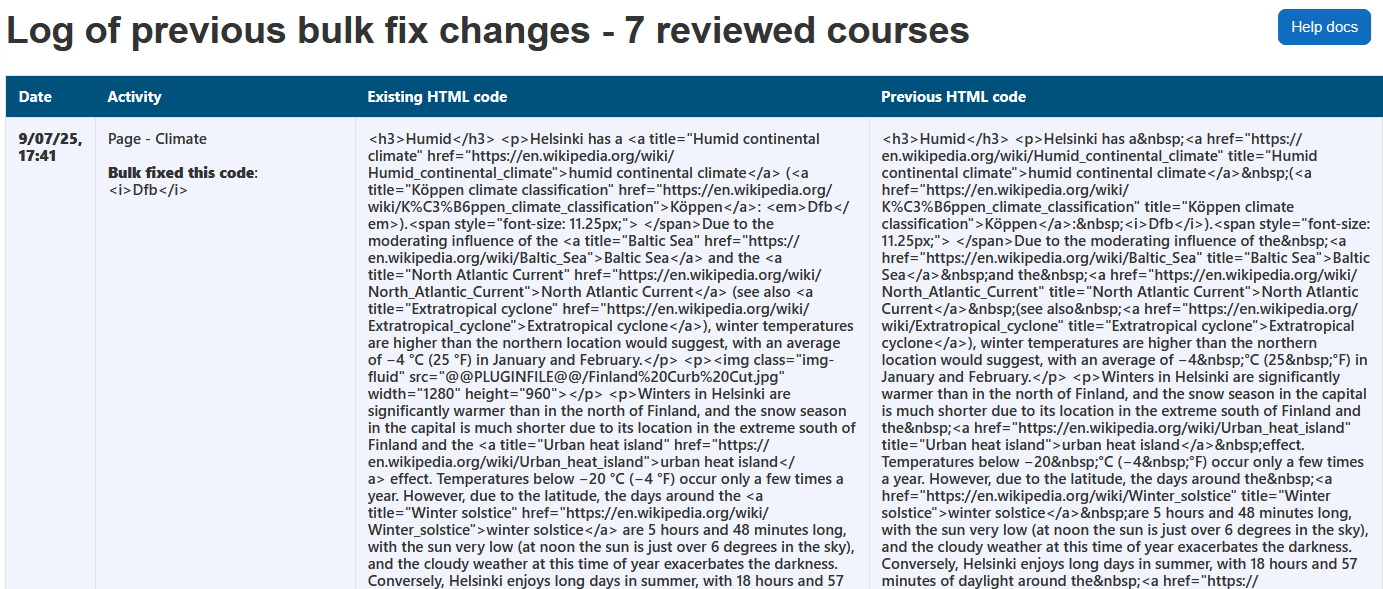
The heading area of the wizard will show whether the errors listed are for one course or many courses.
- If the results are for one course, the course name is displayed.
- If the results are for more than one course, the number of courses is displayed.
The table displays a row for each error that contains four parts:
- Date – The date the error was fixed.
- Activity
- Activity name.
- The code that was fixed.
- Existing HTML code – The existing code.
- Previous HTML code – The code that was fixed.
Capability requirements
Access to the Brickfield Accessibility+ Toolkit is controlled by capabilities and users must have the correct capabilities in the correct context.
- ‘tool/bfplus:viewsystemtools’ capability – To view site level reports and wizards.
- ‘tool/bfplus:viewcoursetools’ capability – To view individual course reports and wizards.
- ‘accessibilityplustool/logbulkfix:view’ capability – To view this Bulk fixes page, users must have this and one of the capabilities mentioned above.
For more information, go to: Capabilities.