
Brickfield Enable: Configuration
Table of Contents
Introduction
This article covers the global configurations of the required, enterprise and optional components, which are outlined respectively in the Components article.
Global configurations for required components
The Brickfield Accessibility+ Toolkit (tool_bfplus module) can be installed using all the default global settings safely.
Initially, the most relevant setting, called the Analysis method (tool_bfplus | analysistype), will then be set to Disabled, which means that the Brickfield Accessibility+ Toolkit analysis processes will not be active yet. This allows you to define your own schedule for each stage of the deployment.
The Accessibility+ Review block (block_bfmanager module) can also be installed using all the default global settings safely.
We recommend that you set the Accessibility+ review block to hidden in the Manage blocks page until your course teachers and designers have been introduced to and prepared for its appearance on their interface.
Global configurations for the Brickfield Accessibility+ Toolkit plugin
To change the global configuration for the Brickfield Accessibility+ Toolkit, navigate to:
- Site administration > Brickfield Enable > Accessibility administration > Settings
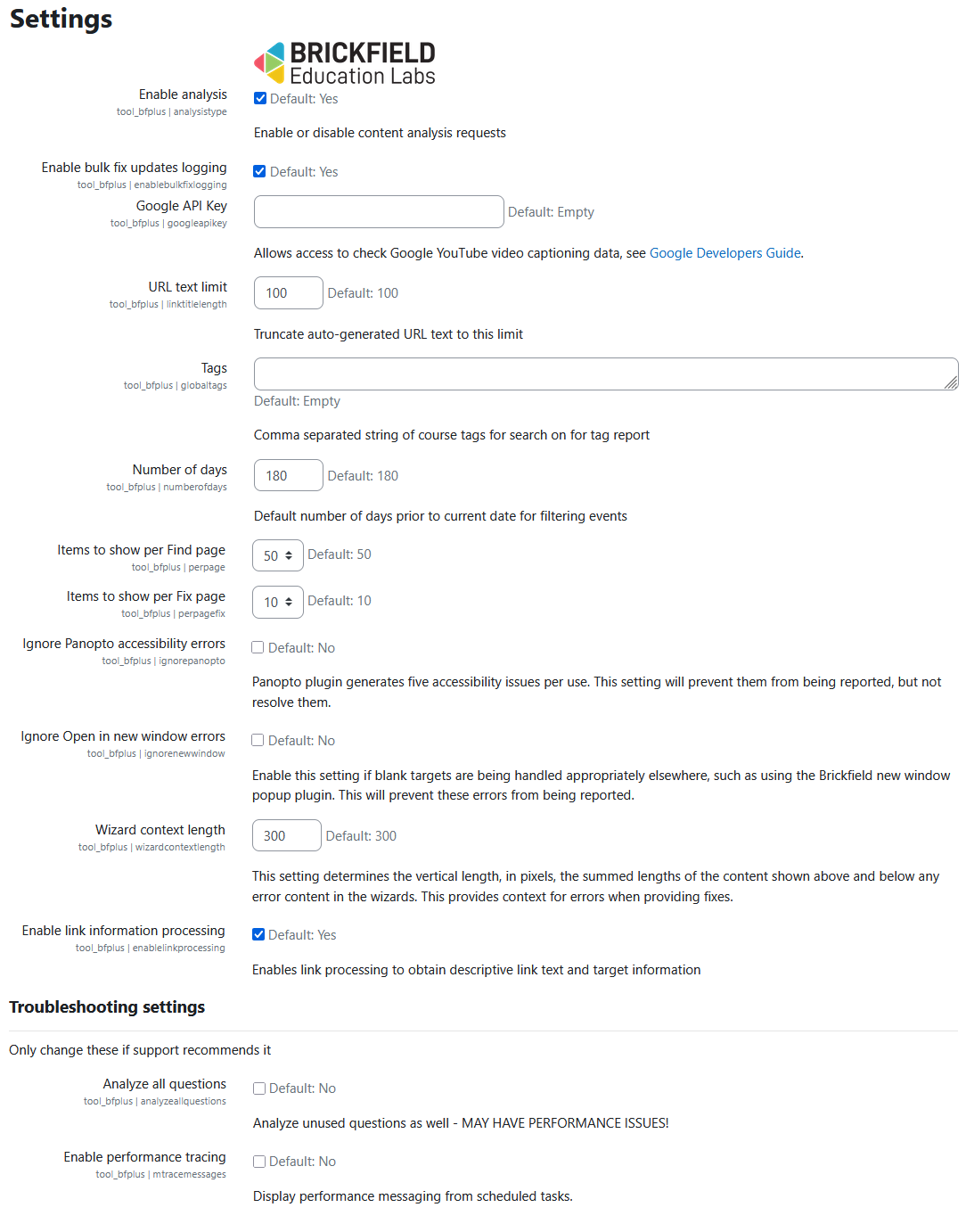
The global configurations are as follows:
- Enable analysis: either disabled, or enabled for requesting course analysis.
- Enable Bulk fix updates logging: whether to log the details from processing bulk fix submissions.
- Google API Key: if supplied, allows access to check any YouTube video’s captioning status, whether existing or not.
- URL Text Limit: the maximum length of a retrieved link from a URL title.
- Tags: configured course tags to show in the tags summary report page.
- Number of days: Default number of days prior to current date for filtering events
- Items to show per Find page: number of table rows to display on the report (Find) pages.
- Items to show per Find page: number of table rows to display on the Fix pages.
- Ignore Panopto accessibility errors: Panopto plugin generates five accessibility issues per use. This setting will prevent them from being reported, but not resolve them
- Wizard context length: This setting determines the vertical length, in pixels, the summed lengths of the content shown above and below any error content in the wizards. This provides context for errors when providing fixes.
- Enable link information processing: Enables link processing to obtain descriptive link text and target information
- Analyze all questions: Analyze unused questions as well
- Enable performance tracing: Display performance messaging from scheduled tasks.
The analysis request setting acts as an opt-in queue for courses to be analysed. This works by only processing courses which have been actively requested to be added to the queue for analysis. This queue of course ids is then analysed by the plugin’s general scheduled tasks and re-analysed whenever changes are made.
Global configurations for the Accessibility+ Review block plugin
To change the global configurations for the Accessibility+ Review block, navigate to:
- Site administration > Brickfield Enable > Plugins > Accessibility+ Review
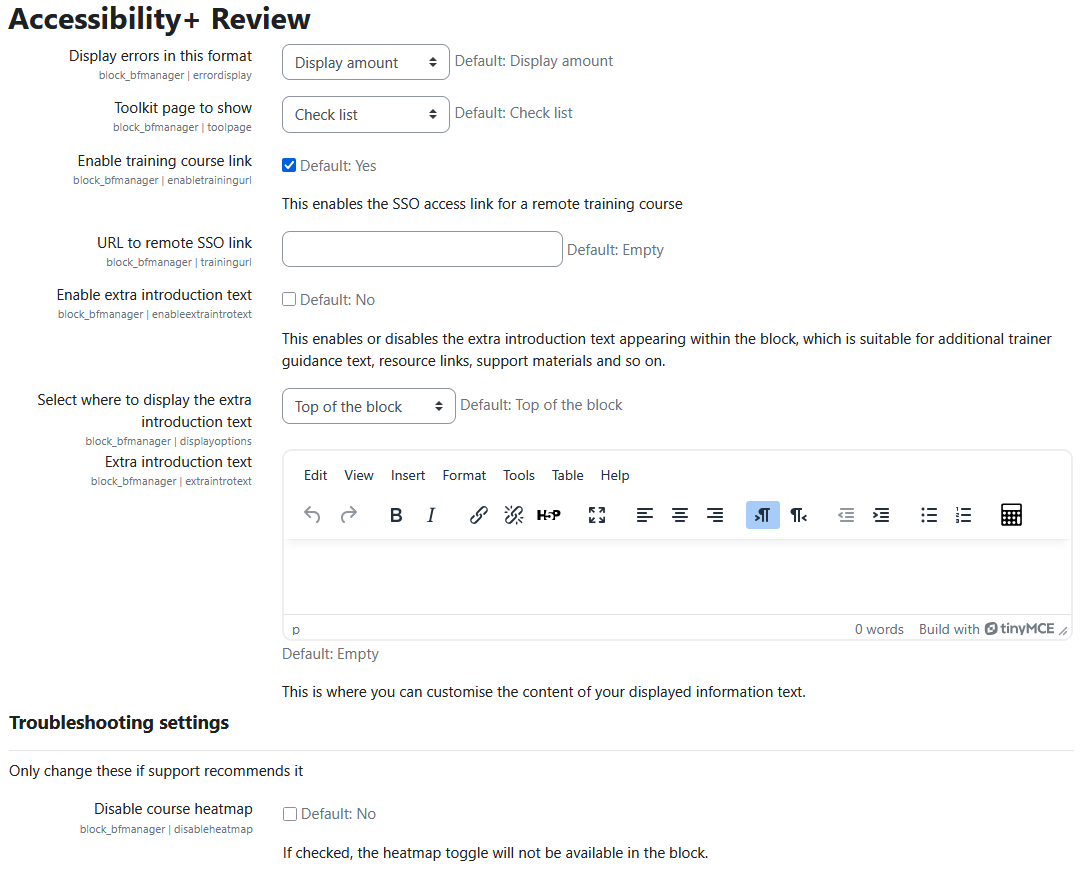
The global configurations are as follows:
- Display errors in this format: to display error amounts or percentages or emoticons.
- Toolkit page to show – which toolkit initial page to link to, defaults to the checks list page and the options for individual pages are:
- Overview – overview
- Activity breakdown – activityresults
- Check list – checkresults
- Content types – checktyperesults
- Error list – errors
- Enable training course link: enables the SSO access link for a remote training course.
- URL to remote SSO link: if supplied, allows access to SSO sign up to Brickfield Academy training courses.
- Enable extra introduction text: enable or disable the display of the extra information text.
- Select where to display the extra introduction text: where to locate the display of the extra information text within the block.
- Extra introduction text: the extra information text editing window.
- Disable course heatmap: If checked, the heatmap toggle will not be available in the block.
Global configurations for enterprise components
The enterprise components Alternate file format conversion and the File licence bulk editing report can be installed using all the default global settings safely, although they will need to be updated with the correct API keys to integrate with the SensusAccess file conversion platform.
Once you have received your SensusAccess API keys, you need to add them to the File conversion plugin as follows:
- On your Moodle site, go to the File conversion settings page, at Site administration > Brickfield Enable > Brickfield Alternate Format > Alternate format settings.
- Enter your API key and User ID key values.
- Click on the Save changes button.
Global configurations for optional components
The optional components can be installed using all the default global settings safely.
The URL to link filter (filter_bfurltolink module) will not show or operate unless enabled on the Manage Filters page. It defaults to disabled.
The Brickfield Atto link editor (atto_bflink module) will not show or operate unless added to the Atto Toolbar config.
The Brickfield Atto image editor (atto_bfimage module) will not show or operate unless added to the Atto Toolbar config.
The Brickfield Tiny link editor (tiny_bflink module) will not show or operate unless enabled to the Tiny general settings.
The Link to new window popup (local_bfnewwindow module) is different to the rest, as it will be active by default, but can be disabled in its global settings if required.
The Brickfield guides (local_bfguides module) is different to the rest, as it will be active by default, but can be disabled in its global settings if required.
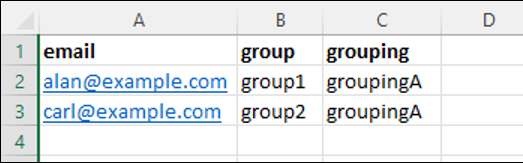
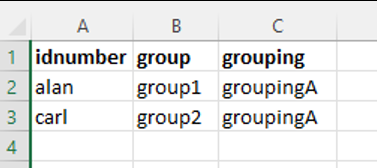
The Course user group upload block has no global settings to configure. When added to a course, it allows a teacher to upload a CSV file, to create groups and groupings for existing enrolled students, making this process faster and more user-friendly.
The CSV file format should be one OR other of the following:
- Email, group name, grouping name OR.
- Student IDnumber, group name, grouping name.
Hide or show the Accessibility+ Toolkit and Alternate Formats
At any point, the Brickfield Accessibility+ Toolkit (tool_bfplus) or Brickfield Alternate Formats (local_bfaltformat) can be hidden from view or returned to view on the interface. This is done with these settings being set to disabled or enabled at: Site administration > Advanced features. The relevant settings are:
- Enable Brickfield Accessibility+ tools: The Brickfield Accessibility+ toolkit provides tools to help ensure accessible content on your site.
- Enable alternate format conversion tool: This options enables the Brickfield alternate format conversion tools.
