
Brickfield Enable: Atto link (bad link support)
Table of Contents
Introduction
The Brickfield Atto link editor provides:
- Link editor: this has access to the toolkit URL title retrieval system, which can
- suggest suitable names for plugins.
- prevent bad practises, such as using “click here” or the raw URL for the link title.
- “Show blank target option to users” setting, which by default is enabled but can disabled in the plugin settings.
The Ad hoc task “\tool_bfplus\task\process_link” deals with processing links. For more information, see: Cron and Scheduled tasks.
Enabling the Brickfield Atto link editor
The Brickfield Atto link editor (atto_bflink module) will not show or operate unless added to the Atto Toolbar config. To enable the Brickfield Atto link editor, navigate to:
- Site administration > Plugins > Text editors > Atto HTML editor > Atto toolbar settings > Toolbar config
- Change “links = link” to “links = bflink”
- Click “save changes”
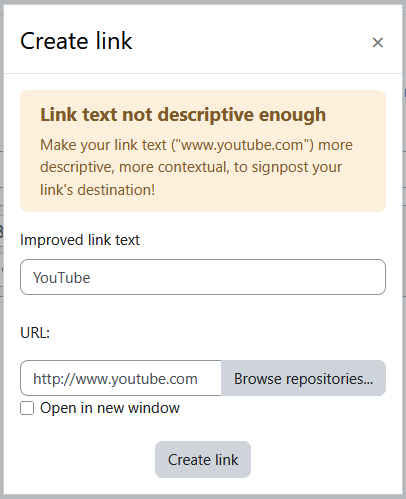
Configuring the Brickfield Atto link editor
To change the global configuration for Brickfield Atto link, navigate to:
- Site administration > Plugins > Text editors > Bflink toolbar settings
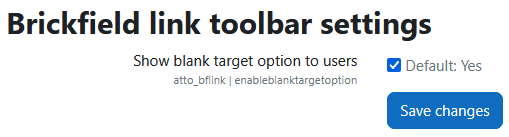
The global configurations are as follows:
- Show blank target option to users: Provides an option to set a link to open in a new window.