
Brickfield Enable: Course block report (bfmanager)
Table of Contents
Introduction
The Accessibility+ Review block features provide teachers with the opportunity to assess and manage their course against a set of technical standards for accessibility, to get feedback on what the problem content is, and where it is.
Where to add and find the Accessibility+ Review block
The Accessibility+ review block can be added to and viewed from:
- Site home
- Individual courses
How to use the Accessibility+ Review block
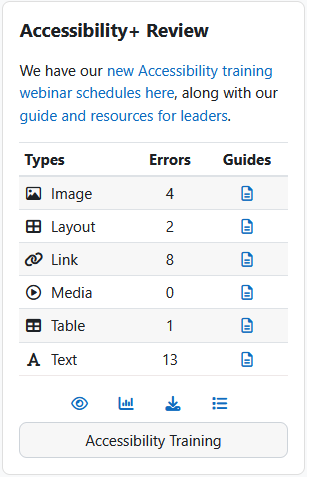
The Accessibility Review block provides the ability to:
- Request course analysis.
- View the accessibility summary results.
- Toggle a heatmap overlay to show the passed/failed activities.
- Download an accessibility PDF transcript of your course.
- View and print accessibility guides.
- View an outline report of the passed/failed activities and course elements in more detail.
- Add extra HTML text to the block, such as details on notifications, upcoming events, available training resources, guidance, and so on.
- Single sign on to Brickfield accessibility training.
Additionally there are links to the Brickfield Accessibility+ Toolkit reports and wizards.
Request course analysis
To request course analysis with Accessibility+ Review:
- Ensure you are viewing the “Accessibility+ Review” block in an unanalysed course.
- Select the “Submit for analysis” button.
Please note: Analysis can be requested on both Site home and individual courses.
Toggle the Accessibility+ Heatmap
To toggle the Accessibility+ Heatmap:
- Ensure you are viewing an “Accessibility+ Review” block in an analysed course.
- Select the “Toggle Accessibility+ Heatmap” icon.
Please note: The Accessibility+ Heatmap can only be toggled when viewing the Accessibility+ Review block in an individual course, and in the Topics and Weekly format.
Access the Brickfield Accessibility+ Toolkit
To access the Brickfield Accessibility+ Toolkit:
- Ensure you are viewing an “Accessibility+ Review” block in an analysed course.
- Select the “View Accessibility+ Report” icon. This will bring you to the Brickfield Accessibility+ Toolkit.
For more information on the Brickfield Accessibility+ Toolkit, go to:
Download the Accessibility+ Report
To download the Accessibility+ Report:
- Ensure you are viewing the “Accessibility+ Review” block in an analysed course.
- Select the “Download Accessibility+ Report” icon.
Please note: The Accessibility+ Report can only be downloaded when viewing the Accessibility+ Review block in an individual course.
View the Outline report
To view the Outline report:
- Ensure you are viewing an “Accessibility+ Review” block in an analysed course.
- Select the “View Accessibility+ outline report” icon. This will bring you to the Outline report.
View and print the Accessibility guides
The Accessibility tips provides just-in-time information in the form of one-pager HTML modals for top tips on accessibility dos and don’ts, for each of the HTML content types.
View the Accessibility guides
To view the Accessibility tips for a HTML content type:
- Ensure you are viewing an “Accessibility+ Review” block.
- Select the “Link the popup resource” icon in the “Guides” column. This will open the accessibility tips modal.
Print the Accessibility guides
To print the Accessibility tips:
- Ensure you are viewing an “Accessibility+ Review” block.
- Select a “Link the popup resource” icon in the “Guides” column. This will open the accessibility tips modal.
- Select the “Print” button.
- Select the relevant options for your browser.
Access Accessibility Training
To access the accessibility training:
- Ensure you are viewing an “Accessibility+ Review” block.
- Click the “Accessibility training” link.
Capability Requirements
Access to the Accessibility+ Review block is controlled by capabilities and users must have the correct capabilities in the correct context.
- ‘block/bfmanager:addinstance’ capability – To add this Accessibility+ Review block, users must have this capability.
- ‘block/bfmanager:view’ capability – To view this Accessibility+ Review block, users must have this capability.
- ‘tool/bfplus:viewcoursetools’ capability – To view individual course reports and wizards.
- ‘tool/bfplus:viewcoursetools’ and ‘accessibilityplustool/printable:view’ capabilities – To download the PDF transcript, users must have these capabilities.
- ‘tool/bfplus:viewcoursetools’ and ‘accessibilityplustool/outline:view’ capabilities – To see and use the list icon link to the Outline report
For more information, see: Capabilities.