
Brickfield Enable: All Tags Page
Table of Contents
Introduction
The All Tags page is divided into multiple tabs, which all display information related to analysed courses per tag. The tabular columns represent the different data values for each HTML content type: Image, Layout, Link, and so on.
This All Tags page displays standard Moodle tags which have been configured in the “Tags” global setting of the Brickfield Accessibility+ Toolkit, for more information, see: Configuration.
It has three different views, as tabs:
- “Check errors” to display course error totals per tag.
- “Activities” to display course activities failed per tag.
- “Pass rate” to display course activities pass rate % per tag.
Where to find the All Tags page
The All Tags page can be accessed via:
- From site administration: Site administration > Brickfield Enable > Accessibility management > Go to reports > Find > Courses, and select “All Tags View” in the dropdown.
- From a course: Course actions menu > Brickfield Accessibility+ Toolkit > Find > Courses > “All Tags View”.
- From the course block: Accessibility+ Review block > View Accessibility+ report (Chart icon) > Find > Courses > “All Tags View”.
How to use the All Tags page
The All Tags page displays three views for the breakdown of tags.
The table displays a row for each Tag that contains ten parts:
- Tag
- Num of courses
- Courses
- Total activities
- Image
- Layout
- Link
- Media
- Table
- Text
View the error totals per tag
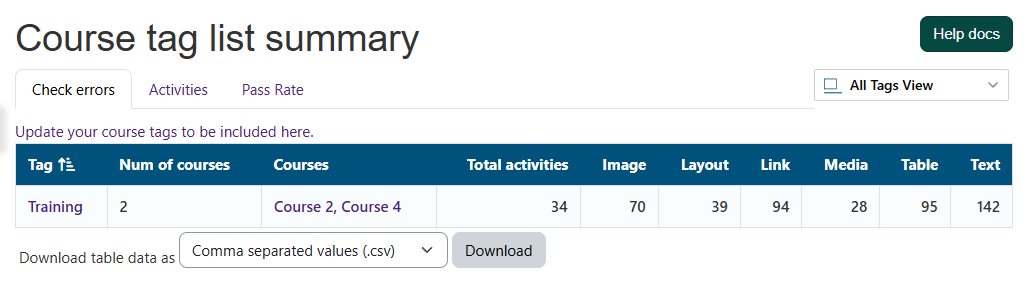
To view the error totals per tag:
- Ensure you are viewing the “All Tags” page.
- Select the “Check errors” tab.
View the activities failed per tag
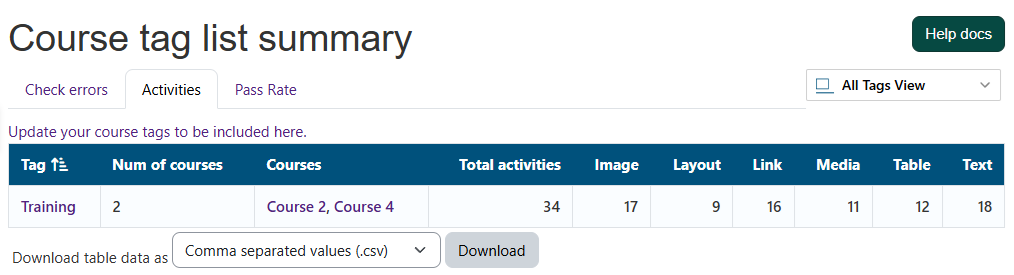
To view the activities failed per tag:
- Ensure you are viewing the “All Tags” page.
- Select the “Activities” tab.
View the activities pass rate % per tag
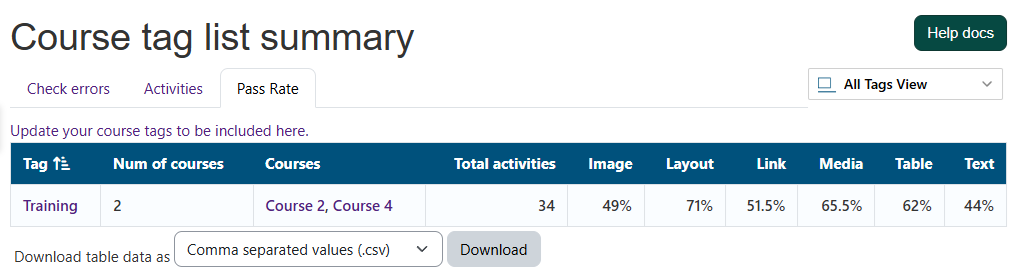
To view the activities pass rate % per tag:
- Ensure you are viewing the “All Tags” page.
- Select the “Pass Rate” tab.
Capability Requirements
Access to the Brickfield Accessibility+ Toolkit is controlled by capabilities and users must have the correct capabilities in the correct context.
- ‘tool/bfplus:viewsystemtools’ capability – To view site level reports and wizards.
- ‘tool/bfplus:viewcoursetools’ capability – To view individual course reports and wizards.
- ‘accessibilityplustool/coursetags:view’ capability – To view this All Tags page, users must have both this and one of the other capabilities mentioned above.
For more information, see: Capabilities.