
Board: Student guide
Introduction
Board is a collaborative activity where you and your classmates contribute posts to a shared set of columns. Posts are anonymous by default — your name is not shown alongside your contributions.
Depending on the board set-up, you may either collaborate within a course group, or course-wide, or possibly within your own single-user board for various purposes, such as individual reflection or formative assessment tasks.
Your teacher sets up the columns and decides what options are available, including whether you can rate posts, move them between columns, or sort them.
Accessing a board
- Go to your course.
- Click the Board activity link.
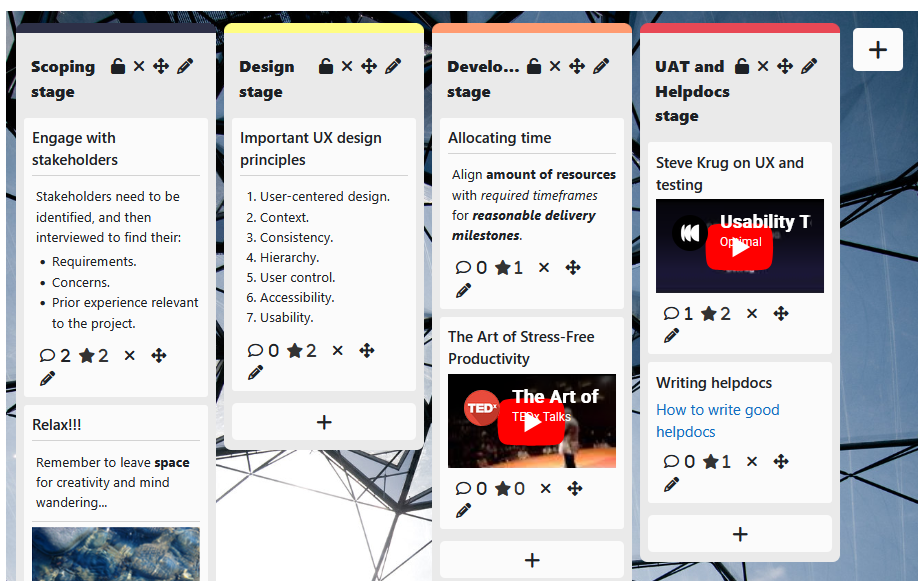
You will see the board with its columns. Each column may have existing posts from your classmates.
Adding a post
Each column has an Add new post button at the bottom. To add a post:
- Click Add new post to column in the column you want to post to.
- Optionally, enter a post title.
- Enter your text content.
- Optionally, select a media type and add the relevant details:
- Link — paste a URL and give it a descriptive name.
- Image — upload an image and add alt text in the image title field.
- File — if enabled, upload a file.
- YouTube — paste a YouTube URL and give it a name.
- Click Post.
If you upload an image, the image title field is used as the alternative text for that image. This field is required — you cannot post without completing it.
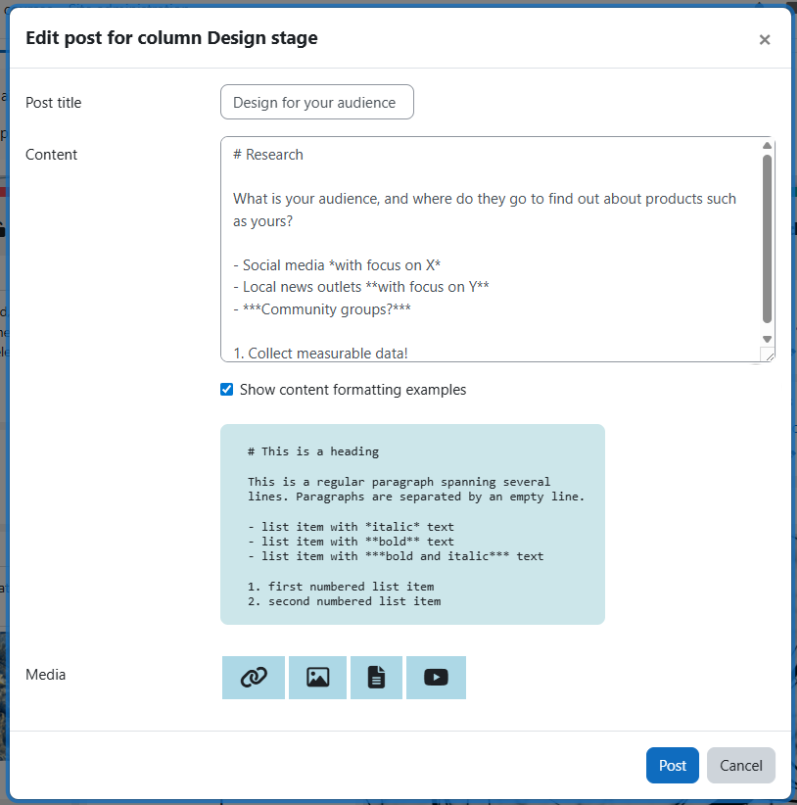
You can edit your own posts after submitting them. Click the pencil icon on the post, make your changes, and click Post to save.
Moving a post
Moving posts between columns may or may not be available, depending on your teacher’s settings. If it is enabled, click and hold the four-pronged move icon on your post, then drag it to the column you want.
Deleting a post
- Click the x button on the post.
- Click Delete in the confirmation popup.
Sorting posts in a column
Sorting is disabled by default. If your teacher has enabled it, click the arrow icon to the left of the column heading to sort the posts in that column.
Liking posts
Liking must be enabled by your teacher. If it is available, each post shows a star icon with a count of likes beside it. You can like any post once — including posts you did not write.
- Click the star button on the post.
- Click Ok in the confirmation popup.
Comments
Comments are enabled by default. When available, each post shows a comments icon with a count of comments beside it. Click the comments icon to open and view the comments section.
Adding a comment
To add a comment:
- Click the comment button on the post.
- Type your comment into the text area at the bottom of the comments section.
- Click Add comment.
Deleting a comment
To delete a comment:
- Find your comment in the comments section.
- Click the bin icon beside it.
Comment notifications — NEW
When someone comments on one of your posts, you will receive a Moodle notification. Notifications are delivered through Moodle’s standard notification system — check your notification preferences in your profile settings to control how you receive them.
Single-user mode
By default, all students share the same board. Your teacher may enable single-user mode, which changes how the board works:
- Private — each student has their own board, visible only to themselves and the teacher. Your posts are not visible to other students.
- Public — each student has their own board, but students can view each other’s. Your name is visible when others view your board.
If single-user mode (public) is enabled, select a classmate’s username from the dropdown menu at the top of the board to view their board.