
Brickfield Enable: Requesting file conversions
Table of Contents
Introduction
Once the Brickfield Alternate Format deployment is completed, it will then automatically be available on your Moodle courses’ main pages.
Requesting file conversions
Requesting file conversions is controlled by capabilities as outlined below and works by displaying a Request conversion icon beside the following:
- File resources
- Folder resources
- Book resources
- Page resources
N.B. files above 1GB in size are not accepted by our file conversion partner, SensusAccess, therefore will have their conversion icon hidden and disabled.
N.B. Books can be converted to HTML.

When users with the relevant capabilities click on the Request conversion icon, a popup “Accessibility File Conversion” screen appears, where they can select the different conversion types available for converting the file.
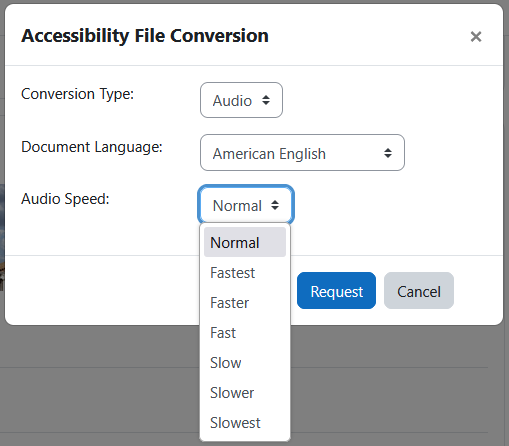
Once the user’s file conversion request is submitted, it will take some time before they can retrieve the file conversion. They will receive a new notification alert confirming the status of their file conversion. However, if the conversion has already been requested, processed and completed on the site, the file will be automatically downloaded as soon as the request is made.
Capability Requirements
Access to Brickfield Alternate Formats is controlled by capabilities and users must have the correct capabilities in the correct context.
- ‘local/bfaltformat:convertfiles’ capability – Request Brickfield Alternate Format file conversions
For more information, see: Capabilities.