Brickfield Enable: File resource licencing
Table of Contents
Introduction
File resource licence management relates to the usage of the Brickfield Alternate Format plugin, whereby course file resources can be requested for conversion into alternative file formats, such as:
- Audio.
- Text.
- E-Book.
- DAISY.
- Braille.
The configured licence details for each course file resource are considered, when deciding if a Moodle user is allowed to request conversions or not.
Here we explain how to manage file licences in Moodle, and how to integrate them with your usage of the Brickfield Alternate Format plugin.
File restrictions based on licencing
There may be times when you want to restrict which files can be converted or not, and this would usually be due to copyright restrictions or other usage restrictions. However, you would also want to ensure that those students who really require this conversion format can always access it for inclusion purposes. These two competing aspects are easily facilitated by the Brickfield Alternate Format plugin.
The steps are:
- Set up a new licence to restrict conversions in Moodle. Please note there are existing licences in Moodle that can also be used.
- Configure this licence in the Brickfield Alternate Format plugin.
- Set the specific user profile field for every user who needs to access the conversion option, no matter what the licence is.
- Let teachers know how to restrict universal conversion when required.
Steps to implement a new licence
You would first create a new custom file licence value, called something like “Conversion rights reserved”, navigate to:
- Site administration > Licence > Licence manager.
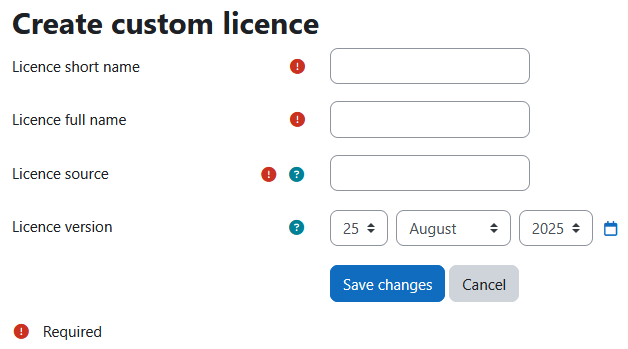
- Click on “Create licence”.
- Licence short name – type “Conversion rights reserved”, or similar.
- Licence full name – type “Conversion rights reserved”, or similar.
- For the Licence source, also a required field, either type in a valid URL linking perhaps to your relevant terms and conditions page about copyright OR type in https://example.com/
- Click on “Save changes”.
- Back on the Licence manager page, use the arrow icon to move the “Conversion rights reserved”, or similar, to the top of the list.