Brickfield Enable: Restricting the alternate format generation
Table of Contents
Introduction
Restricting the alternative file format generation requires configuring Brickfield Alternate Formats “Restrict licence” global setting and changing the file licence value to “Conversion rights reserved”, or similar. This “Restrict licence“ setting initially defaults to “No licence restrictions”, which means that all files are allowed to be universally converted by all users.
To access the global configuration for the Brickfield Alternate Format plugin, navigate to:
- Site administration > Plugins > Local plugins > Brickfield Alternate Format > Alternate format settings
When you change this setting to a different value, such as “Conversion rights reserved”, or similar, then filters are applied, as described in the section below, named “Process for teachers to restrict a specific file by changing the licence”.
Each course file is checked to see what file licence they are configured with (they will ALL have one set)
Process for teachers to restrict a specific file by changing the licence
The licences for all files in a course can be edited efficiently and in bulk through the File licences report.
When the alternate file format setting “Restrict licence“ is changed to a value such as “Conversion rights reserved”, or similar, then the following filters are applied.
All files which do NOT have the licence specified in the “Restrict licence“ setting are available for conversion by anyone, via Brickfield Alternate Formats.
All files which DO have the licence specified in the “Restrict licence“ setting are not available for conversion by everyone, via Brickfield Alternate Formats. However, users with the profile setting “Always access alternate formats” enabled, allows them to convert files with restricted licences. How to do this is outlined in the “How to set a user to always access alternate file formats no matter the licence” section below.
Changing a files licence
- Navigate to the resource or activity containing the file.
- Click “Turn editing on”.
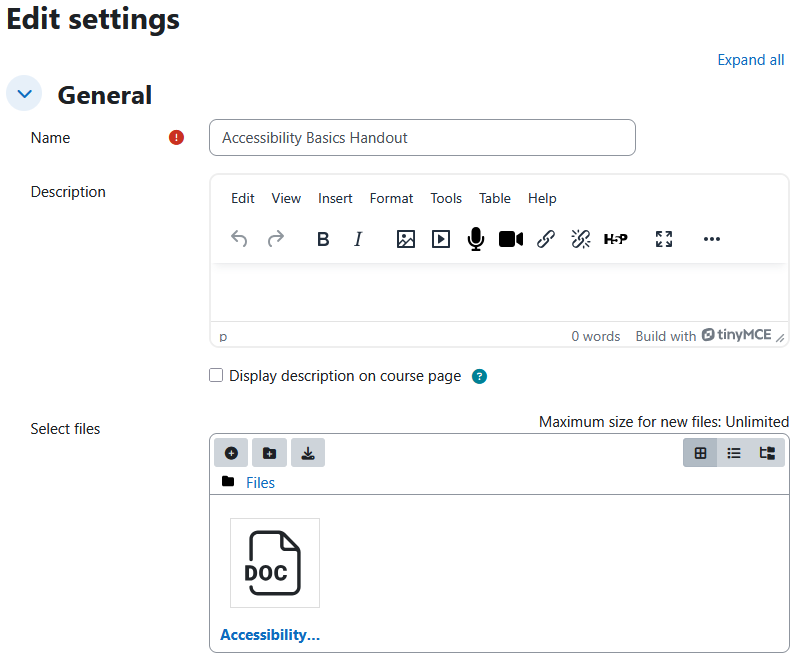
- For the resource or activity, click: Edit > Edit settings.
- Go to the “Select files” section, and click on the relevant file.
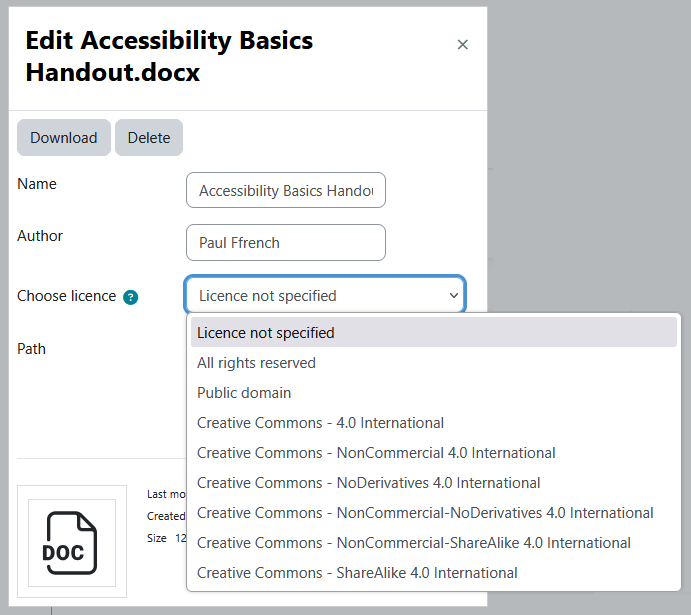
- This brings up a popup with the file details, including the “Choose licence” setting.
How to set a user to always access alternate file formats no matter the licence
- To do this, go to Site administration > Users > Accounts > Browse list of users.
- Search for the relevant user you want to configure to allow this access.
- Click on the Edit link for this user.
- Click on the “Expand all” link in the top right corner – this is ensuring that all the sections have been expanded to show all their settings.
- Go to the end section of the user edit page – this is the section for the additional user custom profile fields
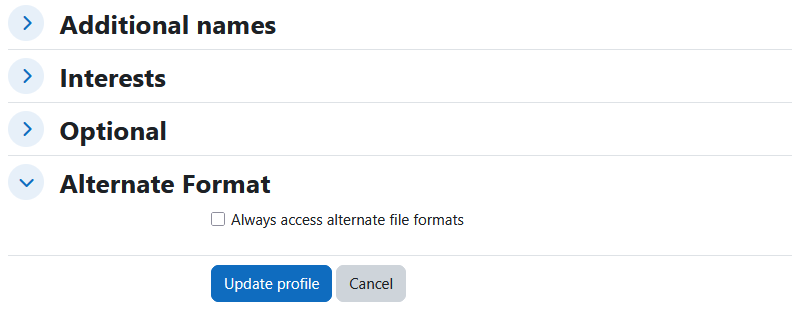
- The user profile setting you should see now, is in the “Alternative Format” category. It is called “Always access alternate file formats“,
- Click on its checkbox.
- Click on the “Update profile” button.
This user is now configured to always be able to access the alternate format conversion for any file, no matter what file licence that file has.