
Brickfield Enable: Accessibility in-screen guides
Table of Contents
Introduction
The Brickfield Accessibility+ Toolkit has many in-screen guides to provide just-in-time information on essential accessibility tips and concepts. Our first set, just below, is on HTML content types, such as Image, Layout, Link and so on. Our second set, further below, is on the accessibility checks we run, and their impact if not followed.
The Accessibility in-screen guides provide in-depth tips into making the course content accessible, each are located within the Accessibility+ Review block and can be downloaded. These accessibility tips are divided into six HTML content types:
- Image
- Layout
- Link
- Media
- Table
- Text
Viewing the Accessibility in-screen guides
Access to the Accessibility+ Review block is controlled by capabilities as outlined below. This block can be added and viewed from:
- Site home > Accessibility+ Review > Guides
- Individual courses > Accessibility+ Review > Guides
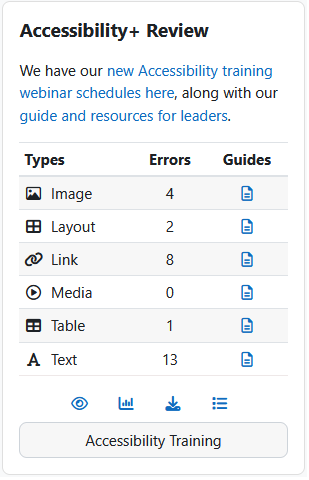
Images are a benefit for most users, particularly for those with strongly visual thinking preferences, those from different language backgrounds or those with print disabilities. The accessibility requirements below enhance images for a range of different users.
Good page design, layout and navigation are essential for some users and helpful for all users. A consistent, predictable layout makes navigation efficient for all users, especially for those relying on assistive technologies.
Hyperlinks are a powerful accessibility feature of online learning. They enable tutors to provide alternative routes, alternative explanations and alternative media. They are excellent for supporting differentiation making both simpler and more advanced explanations available to all students, different media preferences – pointing to video, podcast, infographic or text alternatives where available, alternative ‘case study’ choices supporting students with divergent interests / experiences, and personalised routeways through complex material.
Media benefits most users, particularly those with strongly visual preferences, those from different language backgrounds or those with print disabilities. Although media elements provide many accessibility benefits, they can also provide barriers for those who can’t see or hear or otherwise engage with the media element in question.
Tables can be a very effective way of organising content and are – in themselves – an effective ‘alternative format’ compared to a linear text description of the same information. However the design of the table can make a huge difference to users. Complex tables can easily overwhelm users trying to “see the wood for the trees”.
Text, as the foundation of a webpage’s content, upon which everything else rests, needs to especially meet with accessibility best practises. It provides consistency, navigation, information and instructions for the overall user experience.
Viewing the accessibility check guides
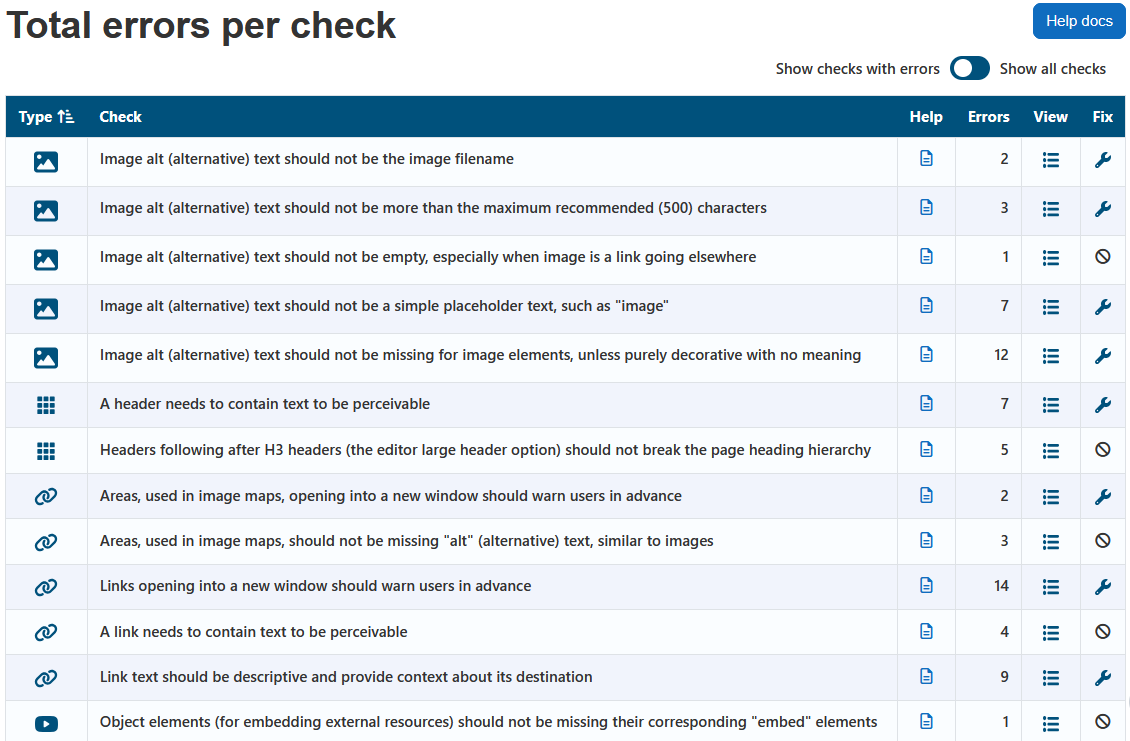
The accessibility guides for each check of the Brickfield Accessibility+ Toolkit are located in the Checks report and can be accessed via:
- From site administration: Site administration > Brickfield Enable > Accessibility management > Go to reports > Find> Checks > Guides
- From a course: Course actions menu > More > Brickfield Accessibility+ Toolkit > Find > Checks > Guides
- From the course block: Accessibility+ Review block > View Accessibility+ report (Chart icon) > Find > Checks > Guides
Capability Requirements
Access to Accessibility+ Review block and the Brickfield Accessibility+ Toolkit is controlled by capabilities and users must have the correct capabilities in the correct context.
- ‘block/bfmanager:view’ capability – To view this Accessibility+ Review block, users must have this capability.
- ‘tool/bfplus:viewsystemtools’ capability – To view site level reports and wizards.
- ‘tool/bfplus:viewcoursetools’ capability – To view individual course reports and wizards.
- ‘accessibilityplustool/checkresults:view’ capability – To view this Check list report, users must have this and one of the capabilities mentioned above.
For more information, see: Capabilities.