
Accessibility Toolkit: Overview report
Table of Contents
Introduction
The Overview report provides the ability to swiftly access any enabled report and wizard of the Brickfield Accessibility+ Toolkit. Additionally this report provides summary information on the activities and HTML content types of the course, or courses.
Where to find the Overview report
The Overview report can be accessed via:
- From Site administration: Site administration > Plugins > Admin tools > Accessibility+ > Go to reports > Overview
- From a course: Course actions menu > Brickfield Accessibility+ Toolkit > Overview
- From the course block: Accessibility+ Review block > View Accessibility+ report (Chart icon) > Go to reports > Overview
How to use the Overview report
The Overview report provides links to the wizards and reports.
The heading area of the report will show whether the errors listed are for one course or many courses.
- If the results are for one course, the course name is displayed.
- If the results are for more than one course, the number of courses is displayed.
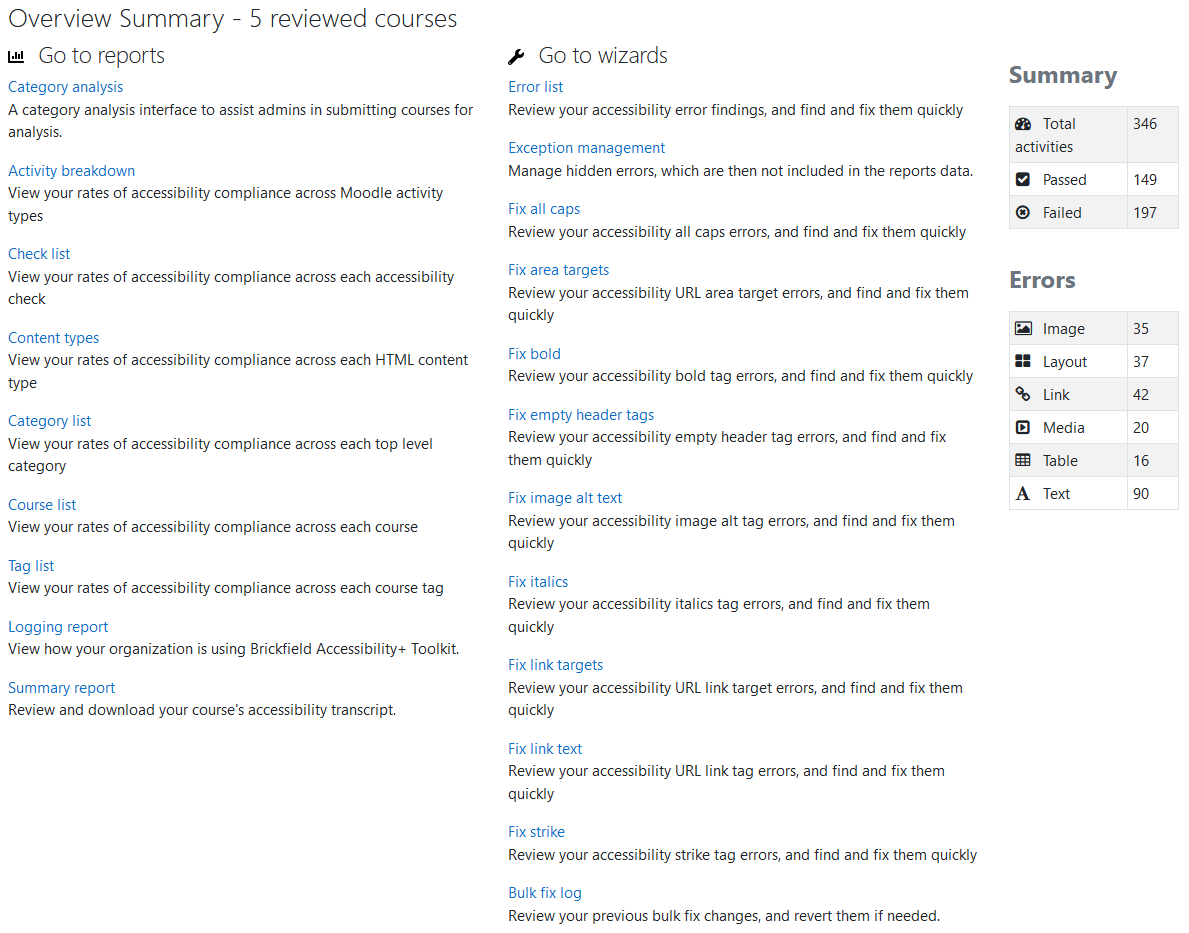
Two tables are on the right of this report:
- “Summary” displays the passed and failed activities.
- “Errors” displays the errors per HTML content type.
Go to the reports
The Find tools help you review your moodle sites accessibility compliance through reports per activity, HTML content type, category, course and tag.
- Category analysis: A category analysis interface to assist admins in submitting courses for analysis.
- Activity breakdown: View your rates of accessibility compliance across Moodle activity types.
- Check list: View your rates of accessibility compliance across each accessibility check.
- Content types: View your rates of accessibility compliance across each HTML content type.
- Category list: View your rates of accessibility compliance across each top level category.
- Course list: View your rates of accessibility compliance across each course.
- Tag list: View your rates of accessibility compliance across each course tag.
- Logging report: View how your organisation is using Brickfield Accessibility+ Toolkit.
- Summary report: Review and download your course’s accessibility transcript.
Go to the wizards
The Fix tools help you efficiently resolve accessibility issues in course content through the bulk fix option available in each wizard.
- Error list: Review your accessibility error findings, and find and fix them quickly.
- Fix all caps: Review your accessibility all caps errors, and find and fix them quickly.
- Fix area targets: Review your accessibility URL area target errors, and find and fix them quickly.
- Fix bold: Review your accessibility bold tag errors, and find and fix them quickly.
- Fix empty header tags: Review your accessibility empty header tag errors, and find and fix them quickly.
- Fix image alt text: Review your accessibility image alt tag errors, and find and fix them quickly.
- Fix italics: Review your accessibility italics tag errors, and find and fix them quickly.
- Fix link targets: Review your accessibility URL link target errors, and find and fix them quickly.
- Fix link text: Review your accessibility URL link tag errors, and find and fix them quickly.
- Fix strike: Review your accessibility strike tag errors, and find and fix them quickly.
- Bulk Fix log: Review your previous bulk fix changes, and revert them if needed.
- Exception Management: Manage hidden errors, which are then not included in the reports data.
Capability Requirements
Access to the Brickfield Accessibility+ Toolkit is controlled by capabilities and users must have the correct capabilities in the correct context.
- ‘tool/bfplus:viewsystemtools’ capability – To view site level reports and wizards.
- ‘tool/bfplus:viewcoursetools’ capability – To view individual course reports and wizards.
- ‘accessibilityplustool/overview:view’ capability – To view this Overview report, users must have this and one of the capabilities mentioned above.
For more information, see: Capabilities.